TikTok Scheduler and Cross-Posting Guide
Prices and features last checked: August 2026
A TikTok scheduler simplifies vertical video management by automating your uploads through official developer APIs, saving you from manually transferring MP4 files to your phone every time you publish. Using a dedicated scheduling tool lets you auto post TikTok content without opening the mobile app daily, but managing watermarks and account permissions determines whether your videos perform well on the platform.
TikTok operates differently from traditional image-based networks. The ecosystem revolves around short-form vertical video, fast-paced audio hooks, and high-frequency publishing schedules. Because the platform leans on recommendation rather than an explicit follower graph, what a viewer does in the first second matters more here than on most networks. A clip with a heavily compressed bitrate, the wrong frame rate, or another app’s logo burned into the corner gives that viewer an easy reason to swipe.
Understanding the mechanics of TikTok publishing—from native web options to third-party automation tools—ensures your vertical video pipeline runs smoothly without triggering system errors or rendering low-quality clips.
How TikTok Publishing Works Today
Publishing a short video to TikTok requires moving heavy media files through a direct upload pipeline that processes video encodings, custom thumbnails, sound selection, and text captions. Unlike platforms built on text and still graphics, TikTok processes every submission through an automated media pipeline before making it visible on profile grids.
Mobile App vs Desktop API Workflows
When you publish standard content within the mobile app, TikTok handles video compression, audio track matching, and metadata attachment on your local device. The mobile editor gives you direct access to trending audio tracks, built-in visual effects, and native text overlays. However, relying purely on manual mobile uploads makes maintaining a consistent publishing calendar difficult for creators handling high daily volume.
Automating your workflow shifts this processing to the TikTok Content Posting API. When an automated service uploads a video file on your behalf, it bypasses the in-app editor entirely. The tool sends the final rendered video, complete caption text, privacy settings, and cover frame selections directly to TikTok servers. This means all video editing, visual overlays, and audio integration must be completed in your editing suite before the file hits the publishing queue.
Why TikTok Is Sensitive to Foreign Content Marks
It is worth separating what is observable from what gets asserted around it. TikTok has not published a rule that demotes video for carrying another network’s logo, and we will not invent one. What is plainly true is that viewers recognize a recycled clip instantly, and a visible rival watermark is the fastest possible tell.
That is reason enough. On a feed where the first second decides whether anyone watches the second one, handing viewers a cue that this was made for somewhere else is a self-inflicted wound regardless of what any recommendation system does with it. Export a clean, high-resolution master without external branding burned into the frame, and the question stops mattering.
Native TikTok Scheduler Options and Free Features
TikTok offers a built-in scheduling feature directly within its desktop web browser interface. If you prefer not to use third-party tools, this option allows you to plan out your content pipeline without paying for extra software.
Web Browser Scheduling Capabilities
To access native scheduling, you log into your account on a desktop browser and navigate to the upload dashboard. The web interface accepts high-resolution vertical video files and provides basic publishing controls.
When you schedule tiktok posts using the native web tool, you can:
- Upload MP4 or MOV video files directly from your desktop storage.
- Write captions, add relevant hashtags, and tag other accounts using standard mention handles.
- Select a specific thumbnail frame or upload a custom image cover.
- Set a future publication date and time within a limited forward window.
- Toggle privacy settings, allowing or disabling comments, duets, and stitches.
Native Limitations for Creators
While the native desktop scheduler is completely free, it introduces several operational friction points. The browser interface does not support the full TikTok commercial audio library in the same way the mobile app does. If you attempt to attach popular copyright-protected music via the desktop interface, your audio selection will be restricted to commercially licensed tracks.
Furthermore, native desktop scheduling offers zero cross-posting capabilities. If you upload a video through the desktop browser, it stays exclusively on TikTok. You cannot mirror that upload to other short-form video networks without manually uploading the file a second time to each separate platform dashboard. Drafts created on the web browser also do not sync down to your mobile application draft folder, creating isolated silos between desktop work and mobile management.
Requirements for a Third-Party TikTok Scheduler
Selecting the best tiktok scheduler for your setup means looking beyond basic calendar displays to evaluate how deep a platform integrates with TikTok’s official application programming interfaces.
API Permissions and Account Types
Third-party management platforms interact with TikTok through official developer scopes. When connecting your profile to an external service, the tool requests authorization to access your media library, read user profile info, and publish video content directly to your grid.
TikTok divides accounts into Personal and Business designations, and API features can vary between them. Business profiles gain access to commercial audio libraries and direct link placement options, while Personal accounts maintain access to broader audio options for manual mobile creation. A robust third-party scheduler must manage these tokens cleanly so your connection does not drop when access keys expire periodically.
Push Notifications vs Direct Auto Posting
Not all third-party software handles publishing identically. Software solutions fall into two technical categories: push notification services and direct auto-posting tools.
- Push Notification Tools: These systems store your video and caption on an external server. When your scheduled time arrives, the service sends a push alert to your mobile phone. You must open the alert, download the video to your camera roll, copy the caption to your clipboard, and manually complete the post inside the TikTok app. Tools like standard plan tiers of Later often rely on notifications for certain account types.
- Direct Auto Posting: Software that uses direct integration allows you to auto post TikTok content without any mobile phone interaction. The server transfers the media file and metadata directly to TikTok’s publishing endpoint at the specified minute.
Tools like Buffer, Metricool, Publer, Hootsuite, SocialPilot, and SocialBee offer direct automated publishing for supported TikTok account types. Buffer offers an accessible entry tier for single profiles, while Publer scales pricing per connected channel. Tools aimed at agencies, such as SocialPilot and SocialBee, emphasize multi-profile management workflows without individual manual confirmations.
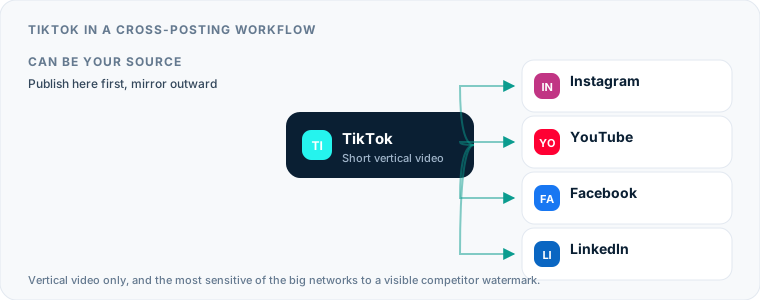
Using TikTok as Your Primary Cross-Posting Source
If TikTok is your main creative hub where you film, edit, and publish initial video clips, establishing an automated distribution pipeline allows you to turn single vertical uploads into multi-platform campaigns.
The TikTok Watermark Problem
The largest hurdle when using TikTok as your primary source involves the platform’s native download behavior. If you record a video inside the TikTok app, apply native text, and export it using the in-app save function, TikTok bakes a moving watermark featuring its logo and your username directly into the video pixels.
Re-uploading a video with a visible TikTok watermark to another network is worth avoiding, though it is worth being precise about why. We have not seen any of these platforms publish a rule that demotes a video for carrying a rival’s logo, and we are not going to claim one exists. The reason to keep the file clean is what a viewer sees: a bouncing competitor logo tells them immediately that the post was made for somewhere else, which is a weaker first impression than a clean frame. If you want to post TikTok to other platforms, bypass the native app export or render your master file in external editing software such as CapCut, Premiere Pro or DaVinci Resolve before publishing.
Routing Video to Other Networks
To maximize your audience reach across short-form destinations, set up a clean syndication strategy that routes un-watermarked vertical assets outward:
- Export your clean raw MP4 file directly from your video editing application to a cloud storage directory.
- If you choose to publish manually to TikTok first, keep an original file copy that contains no burned-in text overlays or platform logos.
- When publishing TikTok clips to YouTube Shorts, adapt your title text to fit YouTube search formatting rather than using hashtag-heavy TikTok captions.
- Utilize dedicated syndication engines like Repurpose.io to automatically copy clean source files from cloud storage directories out to multiple social destinations. Repurpose.io provides automated resizing and storage backups, sitting at a higher entry cost compared to basic schedulers.
- Review our complete technical guide on removing platform watermarks before syndication to keep your assets clean across every destination channel.
Which Destination to Add First
Not every destination is worth the same effort, and the right second network depends on what your clips actually are. Three routes out of TikTok cover most cases:
| Destination | Best when your clips are | The thing that catches people out |
|---|---|---|
| Instagram Reels | Trend-led vertical video with broad appeal | In-app audio does not travel; handles do not resolve |
| Facebook Pages | Aimed at an older or more local audience than TikTok reaches | Automated publishing goes to a Page, never a personal profile |
| Explanatory, professional or industry commentary | Sound-off viewing is common, so burned-in captions matter |
The common thread is that the file travels more easily than the context around it does. The video will land on any of the three; the caption, the audio licensing and the tagged handles are what need a rule set before the route runs unattended.
Sending Short Videos to TikTok as a Destination
Flipping your strategy—using another platform as your primary creative engine and treating TikTok as a secondary distribution channel—requires configuring your content pipeline to match TikTok’s technical demands upon intake.
Destination Restrictions and Sound Licensing
When TikTok acts as an inbound destination for cross-posted content, sound management becomes your primary point of failure. If you create a reel on Instagram using a trending commercial pop track and attempt to syndicate that exact audio track to TikTok via an automated tool, TikTok’s copyright filter may mute the audio track upon receipt.
To avoid muted videos on destination accounts:
- Use original voiceovers, spoken talking-head tracks, or royalty-free audio generated during original editing.
- Rely on commercial-safe background music libraries provided by your editing suite.
- Attach platform-native trending sounds manually after automated publishing if sound alignment is critical to the clip.
Automated Mirroring with Postpari
For creators seeking an automated hands-off pipeline that sends content to TikTok without managing calendar queues manually, Postpari provides source-to-destination mirroring. Postpari allows you to connect an Instagram source account and configure automatic delivery flows that output vertical videos to destination platforms, including TikTok, YouTube Shorts, Facebook Pages, X, Threads, Bluesky, Pinterest, and LinkedIn.
Rather than forcing you to log into a social management calendar to schedule each post individually, Postpari monitors your source profile. When a new short video goes live on your primary profile, Postpari automatically mirror-posts the asset directly to your connected TikTok destination profile. It also offers backfill capabilities to drip previously published catalog videos to your connected accounts over time, avoiding mass-upload flags.
TikTok Formats, Technical Limits, and Upload Errors
TikTok enforces strict technical boundaries on incoming video files through its API. Uploading media that violates aspect ratio or encoding rules results in failed jobs, dropped audio, or cropped frames.
File Specifications and Aspect Ratios
TikTok is built exclusively for high-definition vertical video. Submitting horizontal 16:9 files forces the platform to add black bars above and below your content, creating an unengaging visual experience that causes viewers to swipe away instantly.
| Technical Parameter | Direct API Upload Requirement | Native Desktop Web Upload | Mobile App Upload |
|---|---|---|---|
| Aspect Ratio | 9:16 Vertical (1080x1920) | 9:16 Vertical preferred | Flexible (Auto-crops to 9:16) |
| File Format | MP4 or MOV | MP4, MOV, WebM | MP4, MOV |
| Video Codec | H.264 standard profile | H.264 / HEVC | Native device encoding |
| Audio Format | AAC stereo, 44.1kHz / 48kHz | AAC / MP3 | Device audio mix |
| Frame Rate | 30 fps or 60 fps standard | 24 fps to 60 fps | Up to device capture max |
| Audio Selection | Commercial-safe / User audio | Commercial Web Library | Full Trending Music Library |
Common Error Messages on Delivery
When a scheduled upload fails to publish, management tools return specific error codes generated by TikTok’s servers.
- Invalid Media Format: This occurs when your video file uses an unsupported video codec (such as ProRes or AVI) or an unsupported pixel aspect ratio. Always render exports using baseline H.264 specifications.
- Token Authorization Expired: TikTok API access tokens require periodic renewal for security. If your scheduled post fails unexpectedly, log into your scheduling service and refresh the account authentication.
- Copyright Audio Mute: If the audio track attached to your incoming video contains protected commercial music not cleared for API distribution, TikTok accepts the video payload but mutes the audio track entirely.
- Caption Exceeds Character Limits: While TikTok has expanded caption allowances over time, third-party API endpoints impose strict character caps. Keep captions concise and clear to prevent network submission errors.
Running a TikTok Scheduler Across Multiple Accounts
Social media agencies, multi-brand organizations, and content studios often run several distinct TikTok channels simultaneously. Operating multiple profiles from a single workstation requires careful account isolation to avoid administrative mistakes.
Managing Brand and Personal Profiles
Using a TikTok scheduler multiple accounts setup allows you to segregate brand streams without logging in and out of individual mobile apps continuously. Platforms like SocialPilot and Hootsuite are designed specifically for agencies managing numerous client brands, providing multi-seat access permissions and visual approval queues. Publer manages costs by charging a flat fee per connected social profile, making it easy to calculate costs when adding new client channels.
When running multiple brand accounts:
- Maintain strict asset folders for each client to avoid attaching Brand A’s promotional video to Brand B’s TikTok account.
- Keep credential authorizations isolated so token updates on one account do not disconnect adjacent client profiles.
- Customize target audience settings and comment permission rules individually for each brand profile inside your management software.
If your growth strategy involves managing multiple TikTok profiles simultaneously, ensure your selected management tool natively supports credential separation and distinct publishing rules per account.
Backup Account Strategies
High-volume creators frequently maintain a primary account alongside a backup account to protect their brand footprint against sudden platform locks or policy warnings.
Automation platforms like Postpari simplify secondary account management by allowing you to route a single primary content stream into both a main profile and a secondary backup profile. When a new vertical video drops on your primary network source, the system mirror-posts the clip to both secondary destinations simultaneously, maintaining an active, parallel presence without doubling your operational workload.
A Hands-Off TikTok Workflow for Automation
Building an automated content distribution system eliminates the daily manual burden of uploading files, typing hashtags on small screens, and managing cross-platform timing.
The shape of such a system is simple. One profile is the source — with Postpari that is an Instagram account, because its terms describe an Instagram source. When a new short vertical video appears there, the service detects it and delivers a copy to each connected destination: your main TikTok profile, any backup TikTok profile you run alongside it, and the other networks in the same pass — YouTube Shorts, Facebook Pages, X, Threads, Bluesky and LinkedIn. You publish in one place; the fan-out is somebody else’s job.
Setting Up Source-to-Destination Rules
A practical hands-off publishing workflow follows a clear, single-direction path:
- Establish a Master Source: Designate one profile (such as your Instagram account) as your main publishing hub. Create, edit, and post your primary vertical video assets to this source profile first.
- Configure Automation Links: Connect your master source profile to an automated mirroring service like Postpari. Map your outgoing target destinations to include your primary TikTok profile, secondary TikTok backup profiles, and additional networks like YouTube Shorts or Facebook Pages.
- Standardize Rendering Specs: Produce all source videos in clean 9:16 vertical format using standard H.264 video encoding and original or commercial-cleared audio tracks. Avoid adding platform-specific watermarks, native text stickers, or explicit app mentions at the source level.
- Activate Automated Backfill: If you have an existing library of high-performing vertical assets, use Postpari’s backfill feature to drip historical posts out to your destination accounts gradually over time.
Maintaining Long-Term Content Pipelines
Once your hands-off pipeline is configured, your ongoing workload shifts from repetitive administrative uploads to high-level content creation. You record and edit high-quality vertical assets, publish them once to your primary profile, and let automated software handle distribution across your target social channels.
Using a dedicated auto-posting platform alongside clean master assets removes the repetitive phone uploads and keeps a consistent presence across TikTok and the adjacent short-form networks. It also keeps competitors’ logos out of your video, which matters for how the post reads to a viewer rather than because any network has said it treats such files differently.
What the platforms themselves document
Publishing rules change without notice, and every network is the only authority on its own. These are the pages we check this guide against. If one of them contradicts this page, it is right — tell us.
- TikTok — no public documentation URL we could verify. Check the rules inside the app rather than trusting a third party on them, including us.
Where Postpari fits: Postpari lists TikTok among the networks it works with. It does not publish a platform-by-plan matrix, so confirm TikTok is available on the plan you are considering before you rely on it.
Frequently asked questions
Can you schedule TikTok posts for free without using third-party software?
Yes, TikTok provides a native scheduling feature on its desktop web interface. By accessing TikTok through a web browser on your computer, you can upload vertical videos, write captions, select cover frames, and pick a future publishing date for free. However, the desktop browser tool offers limited audio choices and cannot cross-post videos to other platforms automatically.
Why do cross-posted TikTok videos get lower views when re-uploaded from other apps?
Lower view counts on re-uploaded TikTok clips are usually caused by embedded platform watermarks or incorrect aspect ratios. TikTok's recommendation engine evaluates user engagement signals like watch time and quick drop-offs. Videos featuring foreign logos, low resolutions, or horizontal black bars look unoriginal to viewers, prompting them to swipe away immediately and signaling poor content quality.
What is the difference between push notification scheduling and direct auto-posting for TikTok?
Push notification scheduling requires you to manually finish the publishing process on your phone when alerted by an app. Direct auto-posting uses TikTok's official developer API to transfer your video file, caption, and settings straight to platform servers, publishing your content automatically at the scheduled time without any mobile device interaction.
Will TikTok mute the audio on videos scheduled through third-party management tools?
TikTok will mute scheduled videos if the background audio contains copyrighted commercial music that is not licensed for third-party API publishing. To avoid mutes, use original voiceovers, royalty-free background tracks, or audio assets cleared within your external editing software before sending files through an automated pipeline.
Can an automated tool cross-post the same video to multiple TikTok accounts at once?
Yes, multi-account management tools and mirroring platforms can distribute a single master video to several TikTok profiles simultaneously. Services like Postpari allow you to route incoming vertical video assets to both a primary TikTok account and a secondary backup account at the same time without manual re-uploading.