YouTube Shorts Scheduler and Cross-Posting Guide
Prices and features last checked: August 2026
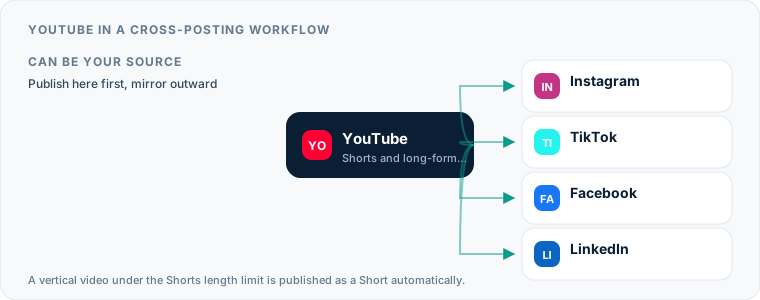
A YouTube shorts scheduler lets you queue up vertical video clips to publish automatically on your channel, removing the need to upload files manually through YouTube Studio every day. Automating your uploads with a scheduling tool or direct mirroring pipeline ensures consistent publishing, keeps your short-form library active, and allows you to cross-post clips across multiple networks simultaneously without re-entering titles and tags.
Unlike standalone short-form video apps, YouTube operates as a hybrid ecosystem where long-form videos, live streams, and vertical Shorts live under a single channel identity. Managing Shorts requires balancing YouTube-specific search behavior, indexing, and subscriber notifications alongside automated cross-posting workflows.
The Modern YouTube Publishing Ecosystem for Short-Form Video
Publishing vertical video on YouTube is fundamentally different from posting on TikTok or Instagram Reels. YouTube distributes content across two distinct discovery channels: the dedicated Shorts feed and the traditional YouTube search and home recommendation engines. When you publish a Short, YouTube indexes the title, description, and channel keywords for search optimization while simultaneously pushing the video to vertical feed viewers.
This dual distribution channel gives YouTube Shorts a significantly longer shelf life than content on pure feed networks. A short video published on YouTube can generate views through organic search months or years after publication. However, this structure demands careful attention to channel organization.
Shorts appear on a separate tab on your main channel page, but they still send notifications to your subscribers unless you explicitly disable that option during upload. Uploading five short clips in a single hour can overwhelm subscriber feeds, triggering unsubscribes. Successful publishing on YouTube relies on steady, metered distribution, whether you upload through native creator tools or automate through an external pipeline.
Using YouTube Studio as a Free YouTube Shorts Scheduler
YouTube offers built-in scheduling capabilities directly through YouTube Studio on web browsers and mobile apps. This native tool serves as a simple, zero-cost option if you only publish content on YouTube and do not need to distribute videos to other social networks.
When you schedule YouTube shorts inside YouTube Studio, you upload your video file, fill out the metadata fields, and select a precise date and time for the video to go live. Until that scheduled time arrives, the video remains hidden from public view in an unlisted or private state on your channel dashboard.
YouTube Studio Native Upload Flow: [Upload Video] -> [Title & Description] -> [Audience Settings] -> [Visibility: Schedule] -> [Queued]
Native YouTube scheduling gives you complete access to platform-specific settings, including:
- Visibility Scheduling: Select exact time zones and release times for public launch.
- Audience Declarations: Set “Made for Kids” parameters required by COPPA regulations.
- Thumbnail Selection: Pick a frame from your short video on the YouTube Studio mobile app before publishing.
- Search Tags and Categories: Add tags, language parameters, and video locations to help index the clip.
- Related Video Linking: Connect a Short directly to a long-form video on your channel to convert vertical video views into long-form watch time.
The native tool works well for one-off uploads, but it lacks cross-posting functionality. If you want to publish the same clip across Instagram, TikTok, and YouTube, using YouTube Studio alone requires you to log into three separate apps and manually copy titles, tags, and video files three separate times.
What a Third-Party YouTube Shorts Scheduler Needs from Your Account
To schedule or auto-publish videos using external software, you must grant the software access through Google’s OAuth authentication system. External tools use the YouTube Data API to send video files and metadata directly to your channel servers.
When evaluating a dedicated short-form video scheduler, you need to understand what permissions the tool requests and how it interacts with Google API quotas. Google assigns daily API usage limits to third-party applications. Enterprise platforms handle vast volumes of API requests easily, while smaller tools may occasionally hit quota caps during peak hours.
Granting access requires authenticating with the specific Google Account that owns or manages your YouTube channel. If your channel operates under a YouTube Brand Account, you must select the Brand Account identity during authentication rather than your personal Google email address.
Account Authorization Model: [Google Account] -> [Select Brand Account] -> [Grant YouTube Data API Access] -> [Connected Scheduler]
Different third-party tools target different management styles:
- Buffer: Offers a classic calendar view and simple channel management. Its per-channel pricing model and functional free tier suit creators who plan posts ahead of time.
- Publer: Features bulk CSV scheduling, post recycling, and broad network support. It charges per connected channel, making it practical for multi-network management.
- Metricool: Uses an analytics-focused dashboard to combine post scheduling with deep performance metrics.
- Later: Built around visual calendar planning, selling access through profile bundles rather than individual channels.
- SocialPilot & Hootsuite: Agency and enterprise platforms designed for multi-user teams, client approval chains, and governance reporting.
Mirroring Content When YouTube is Your Primary Publishing Source
If YouTube is your main creative hub, you likely produce vertical videos in batches or edit highlights out of long-form videos. Building a strategy where YouTube acts as the primary content hub requires understanding how video files flow outward to other social channels.
Using YouTube as an outbound cross-posting source presents technical challenges. The YouTube API heavily restricts third-party software from automatically downloading or pulling original video files off YouTube servers after they are published. While some platforms can read your published YouTube RSS feed or metadata, pulling high-resolution raw video to mirror elsewhere is difficult to automate cleanly.
If you produce content with a YouTube-first mindset, the best approach is part of a broader strategy for distributing one video across every platform. Rather than pulling clips from YouTube after publication, store your finalized vertical video files in cloud storage like Google Drive or Dropbox. From there, dedicated repurposing tools or schedulers can ingest the file and push it out to YouTube Shorts, TikTok, and Facebook Pages simultaneously.
Tools like Repurpose.io excel at moving files from cloud backup folders or secondary feeds into social pipelines. They allow you to route raw files to multiple destinations without relying on YouTube as an outbound file host.
How to Cross Post to YouTube Shorts from Other Networks
For many creators, short-form production begins on Instagram or TikTok, where native editing tools and trending audio are readily available. In this setup, YouTube Shorts acts as an incoming destination. Automatically routing videos from an active mobile network over to YouTube expands your audience without adding extra editing steps.
To auto post YouTube shorts from an external network, you need a automation bridge that monitors your primary account and transfers new posts to YouTube automatically.
Automated Inbound Mirroring Pipeline: [Instagram Reel / TikTok] -> [Mirroring Service] -> [YouTube Data API] -> [Published Shorts Tab]
Postpari simplifies this process through source-to-destination mirroring. You connect your primary Instagram account as the source, attach your YouTube channel as a destination, and set up an automated flow. Whenever you publish a new vertical video on Instagram, Postpari automatically fetches the clip and publishes it directly to your YouTube channel as a Short.
This pipeline handles cross-platform distribution without requiring manual uploads or daily intervention:
- If you primarily create content on Instagram, you can set up a rule to post reels to youtube shorts automatically upon publication.
- If your primary audience is on TikTok, setting up a pipeline from TikTok to YouTube Shorts ensures your vertical clips reach YouTube search indexers immediately.
By using automated mirroring, your content reaches YouTube search results and the Shorts feed without requiring you to reopen video editing software or re-enter metadata manually.
Technical Specs, Video Limits, and Content Formatting Risks
YouTube Shorts applies strict technical boundaries. If an uploaded video strays outside these parameters, YouTube classifies it as a standard long-form video instead of a Short, breaking vertical feed delivery and displaying the video with awkward side bars on mobile devices.
| Feature / Spec | YouTube Shorts | Instagram Reels | TikTok |
|---|---|---|---|
| Max Duration | 60 seconds (Standard) / 3 minutes (Extended) | 90 seconds | 10 to 15 minutes |
| Aspect Ratio | 9:16 (Vertical) or 1:1 (Square) | 9:16 (Vertical) | 9:16 (Vertical) |
| Title Character Limit | 100 characters | 2,200 characters (Caption) | 4,000 characters |
| Description Support | Yes (5,000 characters) | Included in Caption | Included in Caption |
| Native Scheduling | Yes (YouTube Studio) | Yes (Professional Accounts) | Yes (Web Dashboard) |
To ensure your video publishes correctly as a Short, adhere to these technical rules:
Video Length Limits
Standard YouTube Shorts must be 60 seconds or less. When editing vertical clips, trim your final render to 58 or 59 seconds. Processing systems occasionally add a fraction of a second during rendering, turning a 60-second video into a 60.1-second file that YouTube classifies as standard long-form video.
Aspect Ratio and Resolution
Videos must be vertical (9:16 aspect ratio, such as 1080x1920 pixels) or square (1:1 aspect ratio, 1080x1080 pixels). Standard 16:9 horizontal videos will never appear in the vertical Shorts feed, regardless of duration.
Watermarks and Viewer Perception
No platform explicitly bans or deletes videos containing watermarks from competing networks. However, visible TikTok or Instagram Reels watermarks harm viewer retention. Viewers often skip videos with giant platform logos overlaying the text, which reduces overall watch time. To maintain strong performance across channels, export original, clean video files from your editor before scheduling.
Titles and Descriptions
YouTube title fields cap at 100 characters, but mobile screens truncate titles after roughly 50 characters. Place core hooks and search terms at the beginning of the title. While adding #Shorts to your title or description used to be required, YouTube’s system now identifies vertical videos under 60 seconds automatically. Including the hashtag remains good practice for secondary search indexing.
Managing Multiple YouTube Channels and Niche Accounts
Creators and digital agencies frequently manage multiple YouTube channels to serve different niches, target regions, or content themes. Running a primary long-form channel alongside a secondary short-form highlights channel is a common operational model.
Managing multiple YouTube channels under native Google login requires constant profile switching. On YouTube Studio, switching between account brand profiles increases the risk of publishing a video to the wrong channel dashboard.
Using an external YouTube shorts scheduler solves account switching by providing a unified destination dashboard.
Multi-Channel Management Model: [Central Dashboard] | +-----------------------+-----------------------+ | | [Main YouTube Channel] [Secondary Clips Channel]
When managing multiple channels:
- Isolate Brand Accounts: Ensure each YouTube channel operates as a distinct Brand Account under your main Google profile to allow clean API authorization.
- Separate Audiences: Avoid publishing the exact same short video across two owned YouTube channels simultaneously. Duplicate uploads on the same platform split search authority and confuse subscribers.
- Manage Account Backups: Postpari supports connecting multiple accounts on the same platform, allowing you to route content to a primary channel while maintaining a backup channel for secondary clips or localized formats.
- Agency Seat Limits: If managing accounts for clients, agency-tailored tools like SocialPilot or Hootsuite offer multi-seat permission structures to control team access without sharing primary Google login credentials.
A Hands-Free Strategy to Schedule Short Videos on YouTube
Building a reliable content workflow allows you to maintain a consistent YouTube presence without manually logging into YouTube Studio every day. By combining batch production with automated mirroring tools, you can schedule short videos on YouTube efficiently.
Here is a practical, four-step cross-posting strategy for creators and teams:
Step 1: Batch Produce and Export Clean Files
Edit your vertical videos in your preferred editing software. Render clips at 1080x1920 resolution with a duration between 15 and 58 seconds. Export clean master files to your computer or mobile device without any third-party app watermarks or logos.
Step 2: Establish Your Primary Source Account
Publish your finalized clip to your primary network (such as Instagram Reels). Write a concise title and caption that fits all intended destination platforms, placing the most important hook in the first 50 characters.
Step 3: Configure Direct Platform Automation
Connect your Instagram account and YouTube channel inside Postpari. Set up an automated mirroring pipeline so that every short video published on your primary Instagram feed transfers automatically to YouTube Shorts.
Weekly Automated Publishing Pipeline: [Batch Edit Clips] -> [Publish to Source Network] -> [Automated Mirroring] -> [YouTube Shorts Published]
Step 4: Monitor Search Performance in YouTube Studio
Check YouTube Studio once a week to review video analytics, edit descriptions for top-performing Shorts, and pin relevant links or long-form video recommendations in the comment sections.
Using a dedicated shorts publishing tool or automated pipeline eliminates the repetitive work of manual uploads, letting you build a lasting vertical video library on YouTube automatically.
Technical Triggers That Classify Your Upload as a YouTube Short
YouTube does not offer a separate video file format specifically for Shorts. Instead, its ingest engine analyzes incoming video files during processing and automatically assigns them to the Shorts shelf based on strict technical parameters. If an upload fails to meet even one of these structural conditions, YouTube defaults to publishing it as a standard long-form video, disrupting your channel layout and intended viewer experience.
Aspect Ratio and Duration Limits
To qualify as a Short, a video file must meet two hard technical thresholds:
- Aspect Ratio: The canvas must be vertical (9:16 aspect ratio, typically 1080x1920 pixels) or square (1:1 aspect ratio, typically 1080x1080 pixels). Widescreen format files (16:9) will never qualify as Shorts, regardless of how short they are.
- File Duration: The video file length must be 60 seconds or shorter. This limit includes every frame from zero to the final export timestamp; an upload measuring 60.1 seconds will be parsed as a standard horizontal video, rendering it ineligible for vertical feed recommendations.
Title and Description Triggers
While technical parameters drive automatic ingestion, explicit tagging provides a failsafe for edge cases:
- Hashtag Placement: Including
#Shortsin either the title or description signals your intent directly to YouTube’s classifier. This tag is particularly useful for square 1:1 videos, where aspect ratio parsing can occasionally stall during automated processing. - Audio Track Integration: Videos created using YouTube’s native in-app audio library are automatically flagged as Shorts, but external uploads containing embedded production tracks rely entirely on aspect ratio and file length to trigger classification.
How to Schedule YouTube Shorts Directly in YouTube Studio
Native scheduling through YouTube Studio gives you complete control over video processing, indexing, and monetization settings before a vertical video goes live to the public.
Step 1: Upload and Format Selection
- Open YouTube Studio on your desktop browser or launch the YouTube Studio mobile application.
- Select Create (the camera icon with a plus sign) in the upper right corner and choose Upload videos.
- Drag and drop your vertical video file (9:16, 60 seconds or less).
- Allow YouTube to complete the initial processing checks. Studio automatically displays a “Shorts” badge in the preview player once it verifies the aspect ratio and video length.
Step 2: Configure Visibility and Schedule Date
- Enter your short title, full description, and applicable video tags.
- Select your target audience setting (indicating whether the content is made for kids) and assign appropriate age restrictions.
- Advance to the Visibility tab.
- Skip the immediate publication options (“Public”, “Unlisted”, or “Private”) and click Schedule.
- Pick your local publishing date and time from the calendar picker.
- Click Schedule at the bottom right corner.
YouTube holds the file in a scheduled queue while processing high-definition rendering and automated copyright checks in the background. When the specified calendar timestamp arrives, the server changes the status from scheduled to public, dropping the video into subscriber feeds and short-form recommendations simultaneously.
Setting Up a Third-Party YouTube Shorts Scheduler
Managing publication schedules across multiple brands or high-volume publishing channels often requires dedicated software. When integrating a third-party youtube shorts scheduler, understanding account authorization and tool capabilities prevents failed uploads.
API Requirements and Google Account Permissions
Third-party management platforms interact with YouTube through Google’s OAuth 2.0 interface and the YouTube Data API. When connecting your channel:
- You must authenticate using the Google account that owns or manages the YouTube channel.
- Grant explicit write permissions for video uploads, metadata management, and scheduled publication.
- Ensure your YouTube account is in good standing and phone-verified; unverified channels face restrictions on automated link indexing and video thumbnail customization.
Comparing Third-Party Scheduling Options
Evaluating comprehensive social media management platforms requires matching platform feature sets to your publishing model:
| Tool | Primary Scheduling Model | Key Features | Account Structure |
|---|---|---|---|
| Postpari | Source-to-Destination Mirroring | Automatic reposting from Instagram to YouTube Shorts; direct backfill | Managed source-to-destination pipelines |
| Buffer | Calendar Compose & Schedule | Direct channel queuing; post approval flows on team tiers | Per-channel pricing tiers |
| Publer | Multi-Network Direct Distribution | Bulk CSV scheduling; content recycling options | Per-connected-account pricing |
| SocialBee | Content Category Queues | Queue-based posting cycles; post re-use options | Workspace and category organization |
| Metricool | Visual Calendar Management | Direct network scheduling; performance monitoring | Brand-based account tiers |
Crafting Titles, Descriptions, and Hashtags for Shorts Search
Unlike traditional short-form networks that rely almost exclusively on passive algorithmic recommendations, YouTube operates as the world’s second-largest search engine. Optimizing metadata for Shorts ensures your vertical clips gather search traffic for months after leaving the main recommended feed.
The First 30 Characters of Your Title
Titles on vertical feed overlays get truncated based on viewer device screens. Place your central keyword phrase within the first 30 characters of the title. Keep the overall title under 60 characters so it remains fully visible on desktop and mobile feeds without cutting off context. Avoid broad clickbait phrasing that fails to match the actual visual hook of the video, as rapid viewer swipe-aways tell the recommendation engine that the title misleads viewers.
Description Links and Hashtag Placement
While full descriptions remain hidden behind a menu tap inside the Shorts player, search crawlers read every line of text you provide:
- Search Intent: Use the first two sentences of the description to frame the video topic using naturally stated long-tail keywords.
- Hashtag Limits: Limit your description to 3 to 5 targeted hashtags. Use
#Shortsalongside specific topical tags (such as#VideoEditingor#HomeCooking). Overloading captions with dozens of generic tags dilutes contextual relevance. - Archive Conversion: When republishing top-performing archive videos, rewrite legacy long-form descriptions into concise summary sentences optimized specifically for short-attention-span viewers.
How to Schedule YouTube Shorts Alongside TikTok and Reels
Operating across YouTube Shorts, TikTok, and Instagram Reels simultaneously requires an understanding of how platform architectures differ, even when the underlying video asset remains identical.
Algorithmic Differences Across Platforms
While all three platforms deliver vertical full-screen video, their discovery mechanisms reward distinct viewer actions:
- YouTube Shorts: Heavily weights long-term search indexation and viewer retention relative to video length. Shorts connected to an active channel act as acquisition drivers for long-form channel content.
- TikTok: Driven by interest-graph velocity, evaluating initial user watch loops, audio reuse, and rapid engagement spikes within hours of publishing.
- Instagram Reels: Leverages a blend of existing follower relationship signals and algorithmic account recommendations, prioritizing social shares via direct message.
Multi-Channel Distribution Workflows
To publish efficiently across every network without duplicating manual tasks, establish a unified distribution strategy:
- Source Content Generation: Export clean vertical files without embedded logos, burnt-in stickers, or platform-specific watermark overlays.
- Automated Cross-Posting: Connect your primary content source—such as an Instagram account—to direct cross-posting infrastructure. Using dedicated tools like Postpari allows you to automatically mirror newly published Reels directly over to YouTube Shorts and TikTok without manual intervention.
- Workflow Customization: If your process involves custom pacing, configure a custom cross-posting workflow builder to add structured delays between network releases.
- Channel Isolation: If you manage multiple targeted channels across different industries, use dedicated workflows for multi-account management strategies to ensure content lands on the correct niche YouTube destination every time.
Exact Requirements: What Makes an Upload Qualify as a YouTube Short
Technical Requirements to Schedule YouTube Shorts Correctly
YouTube automatically routes an upload into the Shorts feed based on physical video properties rather than a manual tag or setting inside YouTube Studio. If your clip fails to meet these criteria, YouTube treats it as a standard horizontal video regardless of your intent.
To qualify for automatic classification as a Short, your video must adhere to two strict technical boundaries:
- Aspect Ratio: The canvas must be rendered in a vertical format (9:16 aspect ratio, typically 1080x1920 pixels) or a square format (1:1 aspect ratio, typically 1080x1080 pixels). Widescreen 16:9 files will always land on the traditional video watch page.
- Duration Limit: The video must be 60 seconds or shorter. YouTube’s automated ingest system measures length down to the millisecond. A video rendered at 60.1 seconds will be categorized as a traditional long-form video.
When using an automated short-form video scheduler, frame-rate conversions during processing can occasionally add fractional padding to your file length. Exporting your final master files at 58 or 59 seconds creates a safety buffer against accidental long-form categorization.
Audio selection inside the native mobile app can also alter duration boundaries. Using licensed audio tracks from YouTube’s native sound library may constrain maximum video duration to 15 or 30 seconds depending on publisher agreements. For scheduled uploads published through desktop browsers or third-party scheduling tools, standard original audio renders up to 60 seconds are supported.
Step-by-Step Native Workflow: How to Schedule YouTube Shorts in Studio
Scheduling a Short natively inside YouTube Studio allows you to upload batch content while maintaining full control over monetization settings, age restrictions, and distribution timing.
Follow these steps to schedule vertical videos directly on desktop:
- Log into your account at studio.youtube.com and click Create in the upper-right corner, then select Upload videos.
- Select your 9:16 vertical MP4 or MOV file. Once the file begins uploading, YouTube Studio will display a vertical preview frame with a Shorts badge in the lower corner.
- Enter your video title (up to 100 characters) and description. Select your target playlist, audience settings (Not Made for Kids), and age restriction parameters.
- Advance through the Video Elements and Checks screens. YouTube will run automated checks for copyright flags and monetization eligibility.
- On the Visibility tab, locate the Schedule section. Choose your desired publication date, local time zone, and target time.
- Click Schedule at the bottom right. Your clip will remain private on your channel until the designated publishing time, at which point it automatically enters the public Shorts feed.
Mobile app users can schedule uploads using the YouTube app by selecting the plus (+) icon, choosing Create a Short, adding media, and selecting Scheduled under visibility settings before tapping Upload Short. Custom thumbnail frame selection for Shorts is currently limited to uploads initiated within the mobile app workflow; desktop Studio picks an automatic frame for scheduled vertical uploads.
Connecting a Third-Party YouTube Shorts Scheduler to Your Channel
Connecting an external publishing platform to your YouTube channel requires establishing an authenticated API connection through Google’s OAuth protocol. Third-party platforms send video binaries and metadata directly to YouTube’s infrastructure without storing persistent login credentials.
When authorizing a scheduling app, the service requests specific account permissions:
- Upload Access: Authorization to push video files directly to your channel uploads bucket.
- Metadata Editing: Permission to edit titles, descriptions, tags, visibility status, and scheduled publication timestamps.
- Read-Only Analytics: Optional permissions to pull post performance metrics back into your scheduling dashboard.
External management tools handle scheduling in two distinct ways. Direct compose-and-schedule tools hold your video assets on their own servers until the designated time, at which point they execute an API call to publish the clip directly to YouTube.
If you prefer continuous platform automation, source-to-destination mirroring tools handle channel distribution hands-free. Services like Postpari establish a direct channel pipeline: when you post a new video on your primary source account (such as Instagram), the system detects the update, pulls the clean vertical asset, and publishes it automatically to your destination YouTube channel. You can read our Postpari review to see how direct mirroring workflows compare against traditional calendar tools.
When selecting a best social media scheduler for YouTube, ensure the vendor maintains verified Google API quotas to avoid upload delays during peak posting hours.
Optimizing Metadata for Shorts Search: Titles, Descriptions, and Hashtags
Unlike recommendation-only vertical feeds on competing platforms, YouTube Shorts are integrated directly into the world’s second-largest search engine. Crafting metadata specifically for how YouTube indexes video content determines whether your Short gets long-tail organic search views months after release.
Title and Description Structure
The first 30 characters of your title are critical because mobile feeds truncate longer strings on vertical player screens. Put your primary topic or primary keyword phrase at the very beginning of the title. Avoid cluttering titles with multiple hashtags. Including #Shorts in your title is no longer required for platform recognition, though adding it to the description box can assist early categorization.
Description links on YouTube Shorts behave differently than standard videos. To prevent automated link spam, URLs in Shorts descriptions are non-clickable on mobile vertical feeds. Keep descriptions focused on contextual text, video summaries, and topical keywords rather than pitch links.
| Metadata Element | YouTube Shorts | TikTok | Instagram Reels |
|---|---|---|---|
| Title / Caption Limit | 100 char title / 5,000 char desc | 4,000 total characters | 2,200 total characters |
| Clickable Links | Disabled on mobile vertical feed | Disabled in video captions | Disabled in post captions |
| Primary Discovery Mode | Algorithm feed + YouTube Search | FYP algorithm + Keyword Search | Explore feed + Reels tab |
| Hashtag Impact | Minimal feed impact; aids search | High topic classification | Moderate topical categorization |
Place 3 to 5 hyper-relevant hashtags at the end of your description field to help YouTube’s topic clusters classify your content quickly.
How YouTube Shorts Differ From TikTok and Instagram Reels for Multi-Platform Creators
Operating a multi-platform video pipeline means understanding how the underlying distribution mechanics on YouTube differ from competing networks. Importing identical assets across networks without adjusting strategy leads to missed growth opportunities.
Multi-Platform Lifecycle Pattern:
TikTok / Reels: [Peak Impression Spike (0-48 Hours)] ---> [Rapid Traffic Decay] YouTube Shorts: [Initial Feed Test (0-72 Hours)] ---> [Evergreen Search Discovery (Months/Years)]
Search Lifecycle vs. Viral Spikes
TikTok and Instagram Reels generate the vast majority of their views within 24 to 72 hours of publication. Once an algorithm cycle ends on those platforms, impression velocity drops off significantly.
YouTube Shorts operate on a dual distribution engine:
- Shorts Feed: Delivers an initial spike of algorithmic testing views to gauge audience retention and swipe-away rates.
- Search and Suggested Index: Places high-retention vertical clips into permanent search results, enabling old Shorts to draw steady daily views indefinitely.
Subscriber Funnel Integration
Subscribers gained directly from a YouTube Short subscribe to your main channel hub. This establishes a direct bridge between short-form discovery and long-form video consumption. TikTok and Instagram followers remain isolated inside short-form feeds without native long-form watch environments.
Audio and Reuse Rules
Commercial music licensed inside TikTok or Instagram music libraries cannot be legally cross-posted to YouTube Shorts without triggering automated Content ID claims or channel strikes. Use royalty-free background tracks or original voiceover audio when executing a broad social media cross-posting plan.
If you are managing multiple social media accounts across different brand niches, strip third-party platform watermarks before uploading to YouTube. Visible logos from other platforms reduce visual quality and diminish viewer engagement. Finally, if you plan to republish old social media posts onto your channel, re-render the original source files at 1080x1920 to maintain high resolution across modern mobile devices.
What the platforms themselves document
Publishing rules change without notice, and every network is the only authority on its own. These are the pages we check this guide against. If one of them contradicts this page, it is right — tell us.
- YouTube Help: create a Short — YouTube
Where Postpari fits: Postpari lists YouTube among the networks it works with. It does not publish a platform-by-plan matrix, so confirm YouTube is available on the plan you are considering before you rely on it.
Frequently asked questions
How do I schedule YouTube Shorts for free?
You can schedule YouTube Shorts for free using YouTube Studio on a desktop browser or mobile app. Upload your vertical video, fill in the title and metadata, go to the Visibility tab, select Schedule, and choose your desired date and time.
Will scheduling YouTube Shorts lower their reach or views?
No, scheduling a YouTube Short does not lower its reach or view count. Scheduled videos remain private until the set release time, at which point YouTube indexes the video and pushes it into the Shorts feed exactly like an instant upload.
Why did my scheduled YouTube Short upload as a regular video?
A scheduled Short publishes as a regular video if it exceeds 60 seconds in duration or uses a horizontal 16:9 aspect ratio. To ensure your clip registers as a Short, render your video in a 9:16 vertical format and trim the total length to 58 or 59 seconds.
Can I schedule YouTube Shorts automatically from Instagram or TikTok?
Yes, you can automate cross-posting using mirroring tools like Postpari. By linking your primary Instagram account to your YouTube channel, any vertical video published to your source feed automatically cross-posts to YouTube Shorts without manual file transfers.
Do I need to include #Shorts when scheduling vertical videos?
YouTube automatically identifies vertical videos under 60 seconds as Shorts without requiring the hashtag. However, adding #Shorts to your title or video description remains good practice to help secondary search discovery.
Does scheduling a YouTube Short affect its initial push to the Shorts feed?
Scheduling a Short does not diminish its reach or initial push to viewers. YouTube processes the vertical video file, generates resolution variants, and indexes metadata while the post sits queued, ensuring full playback quality the moment it goes live.
Can I edit the scheduled date or caption of a YouTube Short after queueing it?
Yes, you can modify the scheduled release time, update the title, edit the description, or alter visibility settings inside YouTube Studio anytime prior to the designated publishing time. Changes save immediately without requiring you to re-upload the video asset.
Why did my scheduled video publish as a standard video instead of a YouTube Short?
An upload publishes as a standard horizontal video if its aspect ratio is wider than square (such as 16:9 widescreen) or if the video duration exceeds 60 seconds. Ensure your source file is trimmed under 60 seconds and encoded in a vertical 9:16 or square 1:1 aspect ratio.
Can I set a custom thumbnail for a scheduled YouTube Short?
You can only select a custom frame thumbnail for YouTube Shorts when uploading directly through the YouTube mobile app. Desktop uploads via YouTube Studio or third-party tools automatically select a frame from the video that cannot be edited once scheduled.
Why did my scheduled short publish as a standard video instead of a Short?
An upload defaults to standard horizontal video format if it exceeds 60.0 seconds in length or fails to meet vertical (9:16) or square (1:1) aspect ratio requirements. Frame-rate export conversions can sometimes add fractional seconds to a 60-second video, pushing it over the platform limit.
Does scheduling a YouTube Short reduce its reach compared to publishing immediately?
Scheduling a Short has no negative impact on algorithmic reach or search distribution. YouTube processes the video file fully before it goes live, giving the system time to complete copyright checks and process high-definition resolutions prior to public release.