How to Cross-Post from Instagram to YouTube Shorts Automatically
Prices and features last checked: October 2026
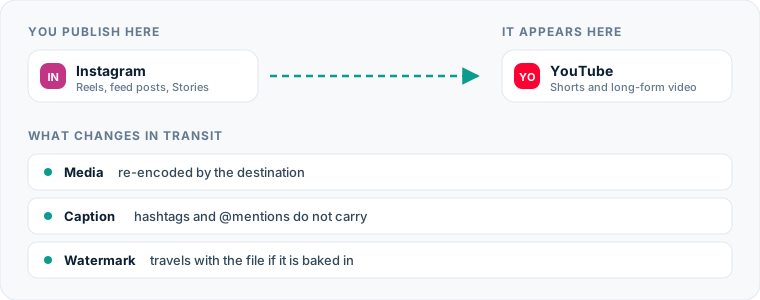
Publishing video from Instagram to YouTube Shorts automatically allows you to syndicate short-form vertical content across two major platforms without manually re-uploading every file. Setting up an automated mirroring workflow between an Instagram account and a YouTube channel ensures every published Reel is fetched, processed, and posted as a Short without human intervention.
This guide covers the mechanics of the Instagram-to-YouTube Shorts route: how files transfer, how captions convert, where the manual process fails, and how to configure an automated flow.
One source account, one destination. Add the rest of your networks to the same flow.
Quick answer: How to move content from Instagram to YouTube Shorts
To automatically route content from Instagram to YouTube Shorts, you connect both accounts to an automation platform that monitors your Instagram feed. When a new Reel goes live, the system detects the publication, downloads the original video file, extracts the caption text, and pushes the video directly to YouTube via the official YouTube Data API as a YouTube Short.
If you are using a source-to-destination mirroring system like Postpari, the transfer occurs in the background seconds after your Reel goes live on Instagram. You publish once on Instagram, and the destination channel receives the video formatted specifically for vertical playback on YouTube.
The manual method: Exactly what you do today
Publishing an Instagram Reel to YouTube Shorts manually requires multiple steps across devices or browser tabs. The process looks like this:
- Export or download the source video: You must download the finished video file. If you edited the video directly inside the Instagram app, saving it to your camera roll often embeds a visible Instagram watermark or strips the audio track due to licensing restrictions. To avoid watermarks, you must either keep the clean, raw export from your video editor (such as CapCut, DaVinci Resolve, or Premiere Pro) on your device or use a third-party downloader tool.
- Transfer the file: If you edited on a desktop computer but published to Instagram via a mobile device, you must move the raw vertical file to a location accessible by YouTube Studio—either back to your desktop or directly within the YouTube mobile app.
- Open YouTube Studio: You open the YouTube mobile app or navigate to YouTube Studio on a desktop browser and select the upload option.
- Select and trim: You select the vertical MP4 or MOV video. YouTube automatically classifies vertical (9:16) or square (1:1) videos of up to three minutes as Shorts.
- Copy and adjust the caption: You copy the text caption used on Instagram, paste it into the YouTube video title or description box, remove Instagram-specific tag handles (like
@username), replace platform-specific calls to action (“link in bio”), and add relevant hashtags. - Configure audience and visibility settings: You select whether the video is made for kids, choose the visibility status (Public, Unlisted, or Private), add it to playlists if relevant, and press Publish.
Performing this routine for every post creates friction. If you publish five Reels per week, doing this manually requires dozens of individual file transfers, copy-paste operations, and platform logins every month.
The hidden overhead of manual publishing
The problem with manual cross-posting is not just the five minutes spent per video. It is the cumulative operational cost and human error that comes with repeating administrative tasks.
Context switching and fragmented media storage
Manual publishing breaks your focus. When you finish editing a video, your goal is to distribute it. Storing raw assets across local hard drives, cloud drives, and mobile camera rolls creates clutter. Over time, finding the clean master file of an older Reel to reuse or re-upload becomes difficult.
Platform-driven delays
When publishing manually, creators often post to Instagram first and promise themselves they will upload to YouTube Shorts later in the day. “Later” frequently turns into days or weeks, or the post is forgotten entirely. This inconsistency harms audience growth on YouTube, where consistent publishing rhythms help the algorithm surface content to new viewers.
Formatting and watermark oversights
When creators try to speed up manual transfers, they often save the video directly from the Instagram app after publishing. Instagram app downloads frequently include watermarked end-screens or watermarked audio tags. Re-uploading a video with a visible Instagram logo or an overlay tag from a competing platform produces an unpolished presentation that alienates viewers on YouTube.
| Factor | Manual Upload | Traditional Scheduler | Source Mirroring (Postpari) |
|---|---|---|---|
| Trigger | Human action | Pre-set time calendar | Direct Instagram publication |
| File Handling | Manual download & upload | Upload file to calendar tool | Automated system fetch |
| Setup Time | Per-post effort | Upfront scheduling per post | One-time connection setup |
| Watermark Risk | High (if saved from IG app) | Low (uses clean upload) | Zero (uses raw API video stream) |
| Asset Storage | Local camera roll / drive | Cloud storage on vendor servers | Source account acts as archive |
The automated method: Instagram to YouTube Shorts automation
Automating the pipeline eliminates the intermediate steps. Instead of treating Instagram and YouTube Shorts as isolated destinations requiring separate upload tasks, an automated integration establishes a direct source-to-destination bridge.
Understanding the mechanics of social media cross-posting helps clarify how modern automation tools handle media distribution. Rather than requiring you to log into a dashboard, upload a file, and manually pick time slots for two platforms, automated systems treat your primary social profile as the origin trigger.
In an automated workflow, your primary creative environment remains Instagram. You write your caption, record your video, apply your edits, and hit publish within Instagram (or through an Instagram scheduler). The automation platform detects the publication event via the platform API, retrieves the clean high-resolution file, processes the text according to your mapping rules, and publishes the video directly to YouTube Shorts.
This source-driven model differs from traditional compose-and-schedule tools like Buffer or Later. While those tools require you to schedule posts across multiple destinations simultaneously in advance, source-to-destination automation allows you to post naturally on your main platform while your secondary channels update automatically in real time.
How to set up an automated Instagram to YouTube Shorts flow
Setting up an automated pipeline between Instagram and YouTube Shorts takes only a few minutes. Here is how the setup works using an automation engine like Postpari.
Step 1: Connect your Instagram account
You connect your primary Instagram account to the automation tool. For public business or creator accounts, this connection grants the system permission to read your public media feed and fetch incoming Reels.
Step 2: Authenticate your YouTube channel
You link your YouTube account and select the specific YouTube channel that will receive the incoming Shorts. Granting API access allows the system to upload videos directly to your channel on your behalf, configured via a dedicated YouTube Shorts scheduler integration layer.
Step 3: Draw the distribution flow
Inside the tool dashboard, you create a new rule or “flow”:
- Source: Instagram
- Destination: YouTube Shorts
You can configure whether all incoming Instagram content gets forwarded or specifically filter for video posts (Reels), ignoring static images or carousel posts which YouTube does not support in the Shorts feed.
Step 4: Configure caption and metadata translation
Define how the platform handles caption text:
- Should the original caption become the YouTube Short title, description, or both?
- Should specific Instagram handles or hashtags be stripped automatically?
- Should a default channel suffix (such as
#Shorts) be appended to every post?
Step 5: Activate and test
Once saved, the flow remains active. To test the pipeline, publish a short vertical Reel on Instagram. Within minutes, check your YouTube Studio dashboard under Content > Shorts to confirm the file has arrived, rendered correctly, and published according to your routing rules.
What happens to the video file from Instagram to YouTube Shorts
When moving content along the Instagram to YouTube Shorts route, the underlying video file must meet YouTube’s technical specifications for short-form content.
Aspect ratio and resolution
Instagram Reels and YouTube Shorts both prefer a standard 9:16 vertical aspect ratio (1080x1920 pixels). When the automation engine retrieves your video from Instagram, it preserves the original resolution. If you upload a square (1:1) video to Instagram, YouTube will still process it as a Short provided it is within the Shorts length limit, though it will display black bars above and below the frame on mobile devices.
Frame rate and encoding
Instagram typically compresses video uploads into H.264 or HEVC codecs using variable bitrates. During the automated transfer, the system fetches the highest quality stream provided by the source API. YouTube then re-encodes this file into its proprietary VP9 or AV1 formats for optimal delivery across mobile devices.
Duration limits
YouTube raised the Shorts ceiling from one minute to three. Its own Help page on creating Shorts now describes Shorts as videos of up to three minutes, so the old advice to keep every Reel under a minute for YouTube’s sake no longer applies. A Reel longer than three minutes still falls outside the format: YouTube will treat the incoming file as a regular video, or your tool will refuse to send it.
Two cautions remain. The limit a third-party tool can publish is not always the limit in the app, so test your longest Reel once before trusting the flow. And length is a creative choice as much as a technical one: a Reel that earns its ninety seconds on Instagram can travel as it is, but there is no reason to stretch a thirty-second idea because the ceiling moved.
What happens to captions, hashtags, and mentions
Text structures on Instagram and YouTube serve different functional purposes. Instagram captions rely heavily on visual layout, account tags, and platform-specific calls to action. YouTube relies on titles for search indexing and metadata organization.
INSTAGRAM SOURCE CAPTION:
3 editing tricks for cleaner video! 🎬 Tag a creator who needs this 👇
Mentioning @editapp and @creators . . #videoediting #reels #contentcreator #editingtips
AUTOMATED TRANSLATION TO YOUTUBE SHORTS:
Title: 3 editing tricks for cleaner video! 🎬 #Shorts Description: 3 editing tricks for cleaner video! 🎬 Tag a creator who needs this 👇
Mentioning editapp and creators
#videoediting #contentcreator #editingtips
Video titles versus descriptions
Instagram does not separate titles from descriptions; it uses a single text field. YouTube Shorts, however, requires a video title (up to 100 characters) and offers an optional extended description field.
Automated tools resolve this structural difference by taking the first line or first sentence of your Instagram caption and setting it as the YouTube Short title. The entire Instagram caption is then placed inside the YouTube video description field.
Handle mentions (@usernames)
An @username tag on Instagram points to an Instagram account ID. On YouTube, that exact handle likely does not exist or belongs to an entirely different user. Automated cross-posting platforms can strip the @ symbol, remove tagged handles entirely, or leave them as plain text to ensure your captions do not contain dead or inaccurate user links on YouTube.
Hashtags
Hashtags function on both platforms, but their placement differs:
- On Instagram, creators often place blocks of 10 to 30 hashtags at the bottom of a caption or in a pinned comment.
- On YouTube Shorts, adding 2 to 4 highly relevant hashtags directly into the video title or top of the description yields better search indexing.
Most automation workflows allow you to truncate excessive hashtag blocks or append standard tags like #Shorts automatically to ensure maximum visibility in YouTube’s discovery feed.
YouTube Shorts-specific route requirements
Setting up an automated Instagram to YouTube Shorts feed requires keeping several technical rules in mind.
Account permissions and API authorization
YouTube requires standard OAuth authentication to publish videos on your behalf. When configuring your automation tool, log in with the primary Google Account associated with your YouTube channel. If your channel is a Brand Account, ensure you select the Brand Account identity during authentication rather than your personal Google profile.
Default visibility settings
You can set incoming Shorts to publish as Public, Unlisted, or Private:
- Public: The video is available immediately to subscribers and the YouTube Shorts feed upon processing.
- Unlisted: The video is uploaded and playable via direct link, but does not appear on your channel homepage or in public recommendations. This allows you to inspect the upload in YouTube Studio before manually making it public.
- Private: The video remains hidden until you review and publish it manually.
Using Unlisted or Private mode is helpful when first testing your automated pipeline to review how captions and titles look on YouTube before broadcasting to your audience.
Monetization and Content ID scanning
Every video uploaded to YouTube undergoes automated automated checks, including Copyright and Content ID scans. If your Instagram Reel used audio from Instagram’s internal music library, YouTube’s systems may identify that audio track as copyrighted material on YouTube.
If a copyright claim occurs, YouTube may mute the audio or prevent monetization on that specific Short. To prevent copyright flags on YouTube, use original voiceovers, royalty-free music, or audio tracks you own the commercial rights to distribute universally.
If YouTube is where you publish first
Everything above assumes the Reel exists first. Some creators work the other way: the Short goes up in YouTube Studio and Instagram follows. That direction has different problems. The file you can get back out of YouTube is a re-encoded copy that may carry YouTube branding, a Short has a title and a description where a Reel has one caption, and Instagram only accepts third-party publishing on professional accounts. We cover that direction separately in the guide to sending YouTube Shorts to Instagram as Reels, including an honest note on which tools are built for a YouTube source and which, like Postpari, are described around an Instagram one.
Common mistakes on this route
Even with automated delivery, structural oversights can reduce the performance of your YouTube Shorts. Evaluating your workflow against options highlighted in our list of the best cross-posting tools can help identify edge cases before they affect your account.
1. Re-posting videos with burnt-in platform logos
Using third-party downloaders to pull already-published Reels from Instagram often results in video files with burnt-in Instagram logos, username overlays, or watermark end-screens. Always ensure your automation system extracts clean source files directly from the original publication feed rather than scraping public web pages.
2. Planning around the old one-minute limit
Plenty of older advice, including earlier versions of this page, says a Reel must stay under a minute to become a Short. That limit is gone: Shorts can now run up to three minutes. The mistake today is the opposite one, trimming a Reel that worked at full length because of a rule that no longer exists. Only a Reel longer than three minutes ends up as a regular YouTube video.
3. Including Instagram-specific calls to action
Captions that say “Tap the link in my bio,” “Double tap if you agree,” or “Check my Instagram Story today” make no sense on YouTube. YouTube Shorts viewers cannot click an Instagram profile bio link from the Shorts player. Adjust your template settings or write platform-neutral calls to action—such as “Subscribe for more tips” or “Comment your thoughts below”—that work across both platforms.
4. Over-reliance on hashtag blocks
Pasting 30 Instagram hashtags into a YouTube Short title makes the video look cluttered. Use your automated text rules to limit hashtags in the title to one or two broad topic tags, keeping extended tags confined to the video description.
5. Ignoring sound licensing differences
Music libraries on Instagram and YouTube operate under entirely separate licensing agreements. An audio track trending legally inside Instagram Reels may trigger a Content ID flag when re-published to YouTube Shorts. Use custom audio, spoken voiceovers, or fully licensed tracks from independent stock audio libraries when creating video meant for automated distribution across both networks.
What the platforms themselves document
Publishing rules change without notice, and every network is the only authority on its own. These are the pages we check this guide against. If one of them contradicts this page, it is right — tell us.
- Instagram Platform: content publishing — Instagram
- YouTube Help: create a Short — YouTube
Does Postpari do this? Postpari is built around exactly this shape of flow: Instagram as the source, YouTube as a connected destination.
Frequently asked questions
Can you automatically post Instagram Reels to YouTube Shorts?
Yes. By connecting your Instagram account and YouTube channel to a source-to-destination automation platform like Postpari, new Reels published on Instagram are automatically downloaded and published directly to YouTube Shorts without manual file uploads.
Will Instagram watermarks appear on YouTube Shorts when cross-posting?
If you use a direct API automation tool, watermarks will not appear because the system accesses the clean original video file. Watermarks only appear if you manually download a Reel from within the Instagram mobile app after publishing.
What happens if an Instagram Reel is longer than a YouTube Short is allowed to be?
YouTube now accepts vertical and square videos of up to three minutes as Shorts, so most Reels fit. A Reel longer than that is published as a regular YouTube video, or refused, depending on how your tool handles it.
Do hashtags from Instagram transfer over to YouTube Shorts?
Yes, text captions including hashtags are transferred during automation. However, most cross-posting systems allow you to filter or clean up hashtag blocks so that your YouTube Short titles remain readable while moving long hashtag lists into the description field.
Do I need a YouTube Brand Account to automate posts from Instagram?
No, you can automate uploads to both standard personal YouTube channels and YouTube Brand Accounts. You simply need to authenticate your Google account and select the correct channel destination during the initial integration setup.