How to Cross-Post from TikTok to X Automatically
Prices and features last checked: September 2026
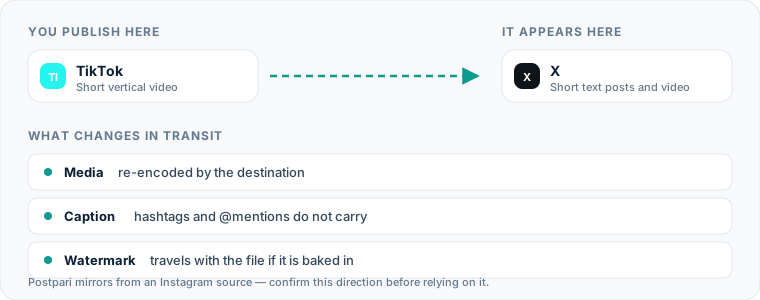
Moving content from TikTok to X does not require you to manually save clips, remove watermarks, and re-upload files every single time you publish. To automatically post TikTok videos to X, you should use an automated distribution workflow that detects new video uploads, retrieves the raw media file, reformats the caption text, and posts the video directly to your X account using native video uploads.
Setting up a direct pipeline ensures your video renders properly in the X timeline while saving you from repetitive mobile app toggling. Whether you publish once a week or several times a day, converting your video feed into a multi-platform strategy expands your audience with minimal extra effort.
One source account, one destination. Add the rest of your networks to the same flow.
Automating Your TikTok to X Video Publishing
When you want to post TikTok to X without babysitting every upload, you are choosing between two paths: manual distribution or an automated media pipeline. Manual distribution gives you control over every pixel and every character, at the cost of a few minutes of attention for every clip you make. Automation moves that work to a background server, so one publish action on TikTok becomes a post on X you did not have to be awake for.
The two networks pull in opposite directions, which is the whole reason this route needs rules. TikTok is portrait-first and sound-led. X is text-first, where a video is the visual anchor under a sentence that has to earn the click on its own. Moving a file between them automatically is easy; moving the text well is the part that decides whether the post reads as native or as a bot dumping leftovers. Our overview of social media cross-posting covers the general shape, and everything below is specific to this pair.
How You Currently Move Short Videos by Hand
If you do not have an automated workflow established, your current routine involves downloading and re-uploading every file by hand. Walking through that routine step by step is the fastest way to see why it wears creators down, and it maps closely to the manual side of the Instagram to X route if that is the source you publish from more often.
To move a clip manually today, you perform these steps:
- Open the TikTok application on your mobile device or desktop browser.
- Navigate to your newly published video, tap the sharing menu, and select the download option to save the video file to your local device camera roll or hard drive.
- Realize the saved video contains a bouncing TikTok watermark and end-frame logo, which looks out of place when published to a competing network.
- Upload the saved video to a third-party watermark removal web service or app to strip out the logo overlays.
- Save the cleaned media file back to your local storage device.
- Open the X application or web client, start a new post, and attach the downloaded video file.
- Copy your original caption from TikTok, paste it into the X compose window, manually trim down any text exceeding the character limit, and remove irrelevant tags.
- Click publish and wait for the upload to finish before returning to your regular tasks.
Doing this once takes a few minutes. Doing this for dozens of videos every month creates a significant administrative bottleneck.
The Hidden Drag of Doing Distribution Manually
The obvious cost of manual uploading is time. The costs that actually hurt are quieter than that.
The first is compression. Downloading through the app hands you an already re-encoded file; running it through a web-based watermark remover encodes it again; X compresses on upload. Each pass costs detail, and a clip that looked sharp when you exported it arrives on X looking like a copy of a copy.
The second is timing and attention. Stopping work to move a file breaks your focus, and the cross-post that does not happen in the first hour usually does not happen at all — which matters most for the clips tied to something happening this week.
The third is text. TikTok captions carry tags like #fyp and references that mean nothing to a reader on X. Editing those under time pressure is where cut-off sentences and broken handles come from.
How TikTok to X Automation Actually Works
To automatically post TikTok to X, you need something that makes the network requests for you. TikTok to X automation is server-to-server work: the tool watches the source, fetches the file, rewrites the text, and hands the result to X’s upload endpoint. Nothing touches your phone.
When you publish a new video on TikTok, the process unfolds in four stages:
Source Polling and Detection
The automation platform checks your public TikTok feed or official media endpoint at structured intervals. The moment a new public post appears, the system extracts the unique post ID, timestamp, original text caption, and raw video download URL.
Media Extraction and Processing
What the tool retrieves at this stage, and what state that file is in, is the single biggest difference between products on this route. Some tools publish automatic watermark removal as a feature and handle it during processing; others transfer the file exactly as they found it, watermark included. It is written on the feature page either way, so check it before you subscribe. If your tool does not remove watermarks, keep the export you made before publishing to TikTok and feed the flow that copy instead.
Metadata Transformation
The engine reads your text payload. It isolates hashtags, identifies account tags, and checks the overall word count against X’s character rules. If the text is too long, the system truncates the caption or extracts the first few lines, keeping your core message intact.
Chunked Upload to X
The engine opens a session with the X media upload API endpoint. Because video files are large, the server breaks the MP4 into small byte chunks, transmits them to X, monitors the processing state, and attaches the processed media container to a fresh post.
| Parameter | Manual Transfer | Shared Link | Automated Native Mirroring |
|---|---|---|---|
| Setup Effort | None | Low | Medium (One-time) |
| Time per post | Several minutes | About a minute | None after setup |
| Watermark status | Often present | N/A | Removed only if the tool publishes that feature |
| Video Playback | Native Player | External Link Card | Native Player |
| Timeline Autoplay | Yes | No | Yes |
| Image Compression | Multi-pass (Poor) | N/A | Single-pass (Clean) |
Setting up the Flow
Configuring a distribution engine takes only a few minutes. While platforms differ in interface design, the core steps remain consistent across software options.
Step 1: Connect Your TikTok Account
Navigate to your chosen distribution engine or repurposing tool. You will need to authenticate your source account. Select TikTok and authorize the tool to read your public video feed. If you are exploring broader software strategies, you can read our breakdown of the best cross-posting tools to evaluate different architectures.
Step 2: Connect Your Target X Account
Add X as your destination account within the software interface. You will log in via OAuth to grant the service permission to upload media and compose posts on your behalf. If you prefer manual oversight over full automation, using a dedicated X scheduling platform allows you to draft posts in advance rather than pushing them live instantly.
Step 3: Establish the Mirroring Rule
Create an explicit flow that sets TikTok as the input trigger and X as the destination target. Specify whether you want every video to publish instantly or land in a review queue first.
In plain terms, the rule reads: when a new video appears on your TikTok account, prepare the file, reformat the caption for X’s length limit, and publish it to your X account.
If your workflow already centers on Instagram rather than TikTok, the shape changes: Postpari draws a flow from an Instagram source out to your other connected accounts, so X is fed by the post you were making anyway. Its own terms describe that Instagram source, which is why a TikTok-first flow is not what it was built around, and why a tool that monitors TikTok directly is the better fit if TikTok is genuinely where you publish first. Either way, the rule is set once and the manual work leaves your routine.
Step 4: Run a Test Transfer
Publish a short test clip or select your most recent TikTok video to run a test execution. Verify that the video renders cleanly in the X timeline, check that the audio tracks sync, and ensure your caption text formats cleanly without trailing code or missing lines.
What Happens to Your Video File During the Process
When you repost tiktok to x, your video file undergoes technical transformations behind the scenes. TikTok stores videos as portrait-oriented MP4 files, typically encoded in H.264 or HEVC codecs with AAC audio streams at a 9:16 aspect ratio (1080x1920 pixels).
X fully supports portrait video, but its timeline displays files differently based on device screen sizes and layout configurations:
Aspect Ratio Handling
A 9:16 vertical video uploaded to X displays natively in the mobile feed, taking up substantial vertical space. On desktop web browsers, X places black or subtle blurred side-bars around vertical videos within the media frame to preserve the original aspect ratio without cropping your footage.
File Compression and Bitrates
TikTok allows higher bitrates for original uploads, but X compresses uploaded media to manage bandwidth across its network. An automated tool sends the original, uncompressed source file directly to X’s upload endpoint. This ensures that X performs the initial compression pass on the original source file rather than compressing an already degraded download.
Duration Constraints
TikTok supports videos stretching up to 10 minutes, but standard X accounts restrict video uploads to 140 seconds (2 minutes and 20 seconds). If your TikTok video exceeds this duration, an automated pipeline must either truncate the clip or fail the upload request. If you regularly produce longer video content, you will need an upgraded X subscription to support longer uploads or plan your content lengths accordingly.
What Happens to the Caption, Hashtags and Mentions
Text translation requires clear rules because TikTok and X treat captions and metadata differently.
A caption written for TikTok arrives at X carrying three things it does not need: discovery hashtags that mean nothing outside TikTok, handles that belong to a different account system, and a length the post field will not accept. A well-configured flow deals with all three before publishing, and the sections below cover each in turn.
Character Length Adjustments
Standard TikTok accounts provide generous caption fields that allow thousands of characters. Standard X posts cap text at 280 characters. If your TikTok caption is long, an automated tool will truncate the text at the character limit, often adding an ellipsis (...). To prevent awkward mid-word cutoffs, write concise captions on TikTok or place long-form commentary in a secondary comment field on TikTok rather than the main video text.
Hashtags and Discovery Terms
Hashtags behave differently across networks. Tags like #FYP, #ForYou, and #TikTokTrending serve discovery algorithms on TikTok, but they offer no value on X and make your posts look automated. Advanced workflows automatically filter out generic TikTok tags before sending the text payload to X, leaving only relevant topical tags like #Tech or #Marketing.
Handle Mapping and User Tags
Tagging another creator on TikTok using their @username will fail on X unless that user shares the exact same handle across both platforms. If the handle differs or does not exist on X, the tag renders as plain text. When tag accuracy matters, manual editing or advanced routing settings let you map specific TikTok handles to their corresponding X accounts.
X-Specific Considerations
Publishing video content to X involves platform rules and user habits distinct from short-form video platforms.
Native Video vs External Links
Never post a raw TikTok link to X instead of uploading the actual video file. When you post a TikTok link, X renders a link preview card. Readers have to leave their feed to watch, and every extra click is a place to lose them. Native video uploads play automatically in the timeline as users scroll, capturing attention immediately.
If you are expanding your distribution network beyond X, consider reading our guide on how to cross post tiktok to instagram to learn how Meta handles portrait media natively.
Account Limits and API Rates
X enforces strict rate limits on media upload endpoints to prevent spam. While posting a few videos a day will not trigger rate limits, sending dozens of clips at once can temporarily block your account’s media API access. Space your automated uploads out over several hours to stay within healthy API limits.
Engagement Dynamics
X users interact with video differently than TikTok users. On TikTok, engagement happens through swipes, sound reuse, and comment threads. On X, engagement revolves around quotes, reposts, and direct text replies. Pairing your video with an intriguing question or strong statement in the post body encourages users to join the conversation in your reply section.
If you maintain a structured posting calendar, managing your source media through a dedicated TikTok scheduling platform ensures a steady flow of content into your distribution pipeline.
Common Mistakes on This Route
Even with automated systems, simple mistakes can reduce the impact of your cross-posted videos. Watching out for these common errors keeps your content looking professional:
- Leaving watermarks on uploaded media: A clip with a TikTok logo bouncing across it tells readers on X that nothing here was made for them. Either pick a tool that publishes watermark removal as a feature, or feed the flow the clean export you saved before publishing.
- Allowing text truncation errors: Let your TikTok captions run past character limits on X, and your posts will cut off mid-sentence. Keep your core message in the first 200 characters of your TikTok caption.
- Carrying over platform-specific jargon: Phrases like “link in bio,” “swipe up,” or “tap the plus button” make no sense on X. Frame your copy so it fits any platform feed.
- Ignoring video aspect ratios: Uploading horizontal videos formatted for YouTube directly to TikTok, and then mirroring them to X, creates awkward black bars on all sides. Stick to vertical 9:16 or square 1:1 formats for short-form clips.
- Overloading posts with hashtags: TikTok captions often contain five to ten hashtags for algorithmic categorization. On X, posts with more than two hashtags look cluttered and reduce readability. Keep your hashtag count low and focused.
Setting up a reliable pathway between TikTok and X turns a single creation process into a multi-network distribution system. By removing manual download tasks and handling file transformations automatically, you maintain a consistent presence across both platforms without doubling your workload.
What the platforms themselves document
Publishing rules change without notice, and every network is the only authority on its own. These are the pages we check this guide against. If one of them contradicts this page, it is right — tell us.
- X API documentation — X
- TikTok — no public documentation URL we could verify. Check the rules inside the app rather than trusting a third party on them, including us.
Does Postpari do this? Worth knowing before you sign up: Postpari's Terms of Use describe mirroring from an Instagram source. If TikTok is where you publish first, check with Postpari that your direction is supported before you rely on it.
Frequently asked questions
Can I post TikTok videos to X without downloading them to my phone?
Yes, you can use automated distribution software to transfer videos directly from TikTok to X. These services monitor your public TikTok profile, retrieve the clean video file from the cloud, and upload it directly to your X account through background API connections without using your device storage.
Will my TikTok videos keep their original music when posted to X?
Audio included directly in your video file will play on X, but commercially licensed sounds added through TikTok's sound library may present copyright issues. If a sound is proprietary to TikTok, the underlying audio track may be flagged or muted when distributed to external platforms.
Does X restrict vertical 9:16 videos cross-posted from TikTok?
No. X supports vertical 9:16 video in both its mobile app and its desktop feed. Desktop browsers place side panels around a vertical clip to preserve the aspect ratio, while on mobile the video fills the width of the feed and autoplays as the reader scrolls past it.
How long does it take for a TikTok video to appear on X after publishing?
Automated systems usually transfer and publish your video within a few minutes of detected publication on TikTok. The exact delay depends on the server polling intervals of your distribution tool and the time required for X to process the incoming video file.
Do I need an X Premium subscription to cross-post videos from TikTok?
No. A standard account can upload native video within X's published length limit for free accounts, which is where most short-form clips already sit. Longer uploads are one of the things X reserves for paid tiers, so check the current limit against your typical video length before you build a flow around it.