X (Twitter) Scheduler and Cross-Posting Guide
Prices and features last checked: August 2026
Setting up a dedicated X scheduler allows you to queue posts and automate video distribution without living inside the app’s fast-moving timeline. Using an X scheduler helps you publish short text updates, native video clips, and cross-posted media on a consistent timetable without manual daily effort. Whether you refer to the platform as X or Twitter, publishing content effectively requires an understanding of its unique mechanics, strict payload constraints, and API access rules.
X operates at a much higher velocity than visual-first networks like Instagram or business networks like LinkedIn. The lifecycle of a post on X is measured in minutes or hours, and the feed prioritizes rapid engagement, native video uploads, and concise conversational text. Managing this environment by hand often leads to inconsistent posting schedules or burnout. Implementing an automated workflow keeps your account active while giving you tight control over how your media and links display.
What publishing to X looks like today
Publishing content on X has shifted dramatically over recent years. The platform has transitioned from a pure microblogging text network into a mixed-media feed where short vertical video, image carousels, long-form articles, and text posts compete for feed placement.
Because X runs on real-time discussion, audience behavior differs significantly from other social platforms:
- Text content demands immediacy. Posts with zero fluff perform best. Intros that work on LinkedIn or Facebook feel slow and out of place on X.
- Vertical video is native. Short-form vertical video (9:16 aspect ratio) plays directly in the mobile video feed, competing directly with TikTok and Instagram Reels.
- External links receive minimal visual real estate. X replaced full link previews (which previously displayed headlines and article summaries) with minimal image cards that display only the domain name overlaid on the lead image.
- Account verification dictates technical limits. Free accounts face strict character caps and short video upload windows, while paid subscribers get expanded limits for text length, media size, and post editing.
Because of these dynamics, copying and pasting raw text from long-form networks directly into X yields poor results. A successful distribution strategy relies on formatting content specifically for the X timeline, whether you write posts directly inside a twitter scheduler or route media automatically from an upstream source.
Native options for an X scheduler (and what they cover for free)
If you only need to draft a few posts in advance, X provides a built-in compose-and-schedule feature on its web interface. To use it, you open the post composer on the web browser, write your content, attach media, click the calendar icon at the bottom of the window, and select a future date and time.
This native feature lets you schedule posts on X without purchasing additional software, but it comes with distinct structural limitations:
What the web composer handles well
The native composer allows you to schedule tweets containing standard text, images, and short MP4 videos directly on your account. It also supports basic post drafting, letting you save unfinished ideas to your web browser. If you publish occasionally and do not manage multiple accounts or cross-platform flows, this free option covers basic needs.
Where the web composer breaks down
Native scheduling on X does not work inside the official iOS or Android mobile apps; you must open a desktop browser or use mobile web to access the calendar tool. Furthermore, the built-in composer cannot automate distribution across other networks. It offers no background synchronization, no auto-resizing for vertical media, and no way to mirror published content from external channels.
If your goal is to publish a single short video once and have it appear on multiple networks simultaneously, reliance on native browser tools creates repetitive administrative work.
What a third-party X scheduler requires from your profile
Moving beyond native browser tools to a dedicated x post scheduler requires authorizing an external application to communicate with X through its Application Programming Interface (API). X uses OAuth 2.0 authorization, which grants third-party applications permission to read your account data, draft content, and publish posts on your behalf without requiring you to hand over your password.
+-------------------+ OAuth 2.0 +-------------------+ | Third-Party Tool | ------------------> | X (Twitter) API | | (Post Scheduler) | <------------------ | (Read/Write Access| +-------------------+ +-------------------+
When connecting a publishing tool to your account, the software requests specific permissions:
- Read permissions: Allows the platform to verify your handle, profile picture, account ID, and subscription level.
- Write permissions: Allows the software to publish text, upload image assets, attach video files, and post threads to your account.
- Media endpoint access: Required to process chunked uploads for larger video files directly into X’s media servers before publishing.
The cost and capability of any third-party tool depend heavily on how it connects to the X API. Platform management suites like Buffer, Metricool, Publer, Hootsuite, and SocialPilot maintain direct integrations, allowing you to compose and queue text, images, and video inside a calendar interface. Higher-tier agency platforms like SocialPilot and SocialBee offer multi-seat collaboration, while creator-focused tools like Metricool and Buffer offer modest entry plans for single accounts.
For automated content pipelines that eliminate manual drafting altogether, media-mirroring tools take a different approach. Rather than requiring you to log into a calendar and write posts manually, tools like Postpari establish a source-to-destination flow. When you connect an Instagram source profile to Postpari, the system monitors for new short video uploads and automatically transfers those video assets directly to your connected account on X.
Using X as a primary cross-posting source
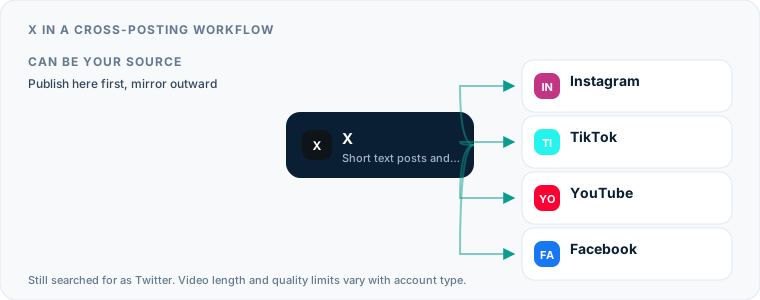
Using X as the primary origin point for your cross-posting pipeline is possible, but it poses unique format challenges. Because X built its legacy around ultra-short text updates, content created primarily for X often lacks the structural depth required by visually heavy or long-form platforms.
If you write a short 200-character post on X and push it automatically to platforms like Instagram or LinkedIn, the post can appear incomplete or sparse on those networks. However, short text updates created on X translate cleanly to similar microblogging environments. If your content strategy relies on text commentary, setting up a workflow that mirrors text updates to a secondary network—such as linking your activity to a Bluesky scheduler—keeps your messaging consistent across alternative microblogging apps.
When using X as a source for video cross-posting, you must ensure that your video uploads are stored natively without burned-in watermarks or platform logos. Videos uploaded directly to X as MP4 files can serve as clean source files for downstream distribution, provided your automation software can retrieve the raw media file from the post payload.
Routing content to X as a cross-posting destination
For most creators and brands, X functions best as a destination network within a multi-platform distribution engine. In this setup, high-production assets—such as short vertical video clips created for Instagram Reels or TikTok—are published to an upstream network and automatically passed through to X.
When you cross post to x from an external platform, your delivery pipeline must account for several destination-specific rules:
Character limit truncation
Standard (unverified) accounts on X are restricted to 280 characters per post. If your source video on Instagram includes a long 1,500-character descriptive caption, an automated pipeline must handle that payload intelligently. Better tools will truncate the text at the 280-character mark, append an ellipsis, or extract only the first line to serve as the post hook, preventing delivery failures at the API level.
Caption formatting and hashtag stripping
Captions designed for visual feeds like Instagram frequently contain dense blocks of hashtags or tagged usernames. On X, excessive hashtags signal low-quality automation to human readers and can degrade post readability. Your automated workflow should strip bulk hashtags out before the text arrives on X. If you want to dive deeper into text adaptation, read our detailed guide to cross-posting captions and formats to optimize your copy across different feeds.
Video processing and delivery
When routing vertical video to X, automated mirroring tools process the original video file and push it natively to X’s media servers. This ensures the video renders in the native player inside the mobile feed rather than appearing as a external link. If you publish vertical short-form video on Instagram, setting up automated mirroring from Instagram to X ensures your content reaches X users in a native format without requiring you to manually re-upload the file.
Formats, video limits, and link handling on X
The technical specifications for publishing media on X vary based on account verification status. Understanding these baseline parameters prevents failed uploads and broken media formatting.
| Feature / Specification | Standard (Free) Account | Premium Subscriber Account |
|---|---|---|
| Post Character Limit | 280 characters | Up to 25,000 characters |
| Max Video Duration (Mobile/Web) | 140 seconds (2 minutes, 20 seconds) | Up to 3 hours (1080p web uploads) |
| Max Video File Size | 512 MB | Up to 8 GB (web uploads) |
| Supported Video Containers | MP4, MOV | MP4, MOV |
| Video Aspect Ratios | 1:2.39 to 2.39:1 (9:16 vertical supported) | 1:2.39 to 2.39:1 (9:16 vertical supported) |
| Post Editing Window | Not available | Up to 1 hour after posting |
| Image Attachments per Post | Up to 4 images | Up to 4 images |
Video specs for feed performance
For optimal performance on mobile timelines, publish vertical video encoded in H.264 format with AAC audio at a 9:16 aspect ratio (1080x1920 resolution). While X accepts horizontal 16:9 video, vertical clips occupy significantly more physical screen real estate on smartphones, capturing higher viewer attention as users swipe through the feed.
How links render in the X feed
Link preview behavior on X differs from almost every other major network. When you paste an external URL into a post, X automatically strips the title and description meta tags, rendering only the lead Open Graph image with a small translucent domain overlay in the lower corner.
+---------------------------------------------------+
| |
| [ Lead Article Image ] |
| |
| example.com |
+---------------------------------------------------+
Because users cannot see the headline of a link card automatically, your main post text must explicitly state why the user should click the link. If you rely solely on a URL to communicate your headline, your post will convey very little context to readers scrolling past.
Managing and scheduling across multiple X accounts
If you manage digital properties for clients, run separate regional feeds, or maintain a personal brand alongside a business account, managing multiple profiles on X requires strict organizational boundaries.
Multi-account rules and spam prevention
X enforces strict policies regarding automation across multiple accounts. The platform explicitly prohibits publishing identical or substantially similar content across multiple profiles simultaneously. Attempting to run twitter auto posting that blasts the exact same text across five different accounts at the exact same minute will result in account suspension or API access revocation.
To publish across multiple handles safely:
- Stagger post times: Offset publishing schedules across different accounts by hours or days.
- Vary the copy: Tailor the post text for each specific account’s target audience.
- Differentiate media: Avoid uploading identical binary video files to multiple accounts simultaneously.
Structuring your publishing tool stack
Traditional social media management tools handle multiple accounts by organizing them into distinct workspaces or brand groups. Platforms like SocialPilot, Publer, and Buffer let you toggle between handles to schedule independent content queues.
If your workflow relies on automated mirroring, services like Postpari allow you to connect multiple destination handles on X. For instance, you can route an primary Instagram source feed to your main X account while sending a secondary video feed to a backup or alternate account. This setup allows you to manage multi-account video operations automatically in the background without needing to log in and out of different handles throughout the day.
A workflow for X that does not need daily attention
Building an efficient distribution system for X means separating content production from daily manual publishing. By establishing a automated background queue, you free up time to interact with your audience directly rather than spending energy manually uploading files.
Here is a practical step-by-step workflow for automated management:
+-------------------+ | Content Creation | (Record & edit short-form vertical videos) +-------------------+ | v +-------------------+ | Primary Source | (Publish native Reel to Instagram) | (Instagram) | +-------------------+ | v [Postpari Automated Mirroring Engine] +-------------------+ | X (Twitter) Feed | (Video posted natively; hashtags stripped) +-------------------+ | v [Manual / Third-Party Scheduler] +-------------------+ | Targeted Text & | (Add occasional commentary, native threads, | Engagement | and live replies directly on X) +-------------------+
- Establish your primary video source. Create short-form vertical videos optimized for modern mobile feeds. Upload your primary video asset to Instagram, which serves as your central repository.
- Configure automated background mirroring. Use Postpari to link your Instagram profile to your X account. When a new short video goes live on Instagram, Postpari detects the update, processes the video file, and posts it directly to your X timeline without manual intervention.
- Supplement with queued text posts. Use an entry-tiercompose tool or X’s native web scheduler to queue text-based hooks, industry observations, or discussion threads once a week.
- Monitor link formatting. When sharing external articles or landing pages, write descriptive hooks directly in your main post body to compensate for X’s minimal link cards.
- Focus manual time on real-time interaction. Because your media assets and text updates drop automatically on a consistent schedule, your daily active time on X can be spent replying to comments, joining conversations, and interacting with account followers.
To compare different tools and find the right platform management suite for your wider distribution stack, read our guide to choosing the best social media scheduler. Integrating automated video sync alongside targeted native text posts ensures your X presence remains active, professional, and sustainable.
Tool Selection: How to Choose a Twitter Scheduler
Manual compose versus automated mirroring
Match tool architecture to content volume
Selecting a scheduling tool for X requires understanding how your team actually produces and distributes content. The social media software market divides publishing tools into three distinct architectural categories: standard compose-and-schedule calendars, category-based recycling queues, and direct source-to-destination mirroring tools.
If you compose custom, text-first commentary, poll questions, and curated photo posts directly for X, a traditional compose-and-schedule tool like Buffer or Metricool fits well. These platforms give you a visual calendar grid where you can write individual posts, select specific publishing times, and view your upcoming week at a glance. If you run a media site or enterprise brand with a large library of evergreen articles, queue-based scheduling systems like SocialBee or Publer allow you to organize updates into content categories and recycle them automatically over time.
However, if your primary publishing focus is producing short-form video on visual platforms like Instagram, manually downloading video files and re-uploading them into a traditional social dashboard introduces repetitive friction. In that operational model, source-to-destination tools remove the upload step entirely by automatically syndicating new short videos published on a primary hub directly to destination profiles like X.
To evaluate which system matches your production style, compare their primary characteristics side-by-side:
| Tool Architecture | Primary Operating Method | Manual Input Per Post | Best Suited Content Types |
|---|---|---|---|
| Compose-and-Schedule | Visual calendar grid with individual post queueing | High (Draft every update manually) | Unique text updates, quick takes, single images |
| Category Recycling Queue | Bucket-based queues with recurring post schedules | Medium (Initial content bucket creation) | Blog post links, recurring text prompts, evergreen content |
| Source-to-Destination Mirroring | Automated post routing from a primary source hub | Low (Set content rules once) | Short vertical video syndication, multi-network media flows |
Before subscribing to a vendor, analyze whether your workflow demands channel-specific draft composition or automated platform mirroring. To explore how different software categories handle multi-channel distribution, read our comprehensive overview of selecting the best cross-posting tools.
Mobile Native Options: How to Schedule Tweets on Handheld Devices
Why the official mobile app omits native scheduling
Using browser workarounds to schedule tweets on a phone
If you attempt to queue a post inside the official X mobile application for iOS or Android, you will notice an obvious omission: the calendar clock icon present on the desktop web interface is missing from the mobile app composer. The platform restricts native scheduling features strictly to its web browser client at x.com. When you compose a post inside the native mobile app, your only built-in publishing options are saving a local draft or posting immediately to your feed.
This platform limitation forces mobile-first creators and remote social media managers to adopt specific browser workarounds when they need to queue updates on a mobile phone without subscribing to additional third-party tools.
- Launch your mobile web browser (such as Mobile Safari or Chrome) rather than opening the native X app.
- Navigate to x.com and sign into your account. If the mobile web composer conceals the calendar icon, open your browser menu and request the desktop version of the website.
- Tap the composer box, click the schedule icon located along the bottom toolbar, and select your target publishing date, hour, and time zone.
- Confirm the queued post. To review, edit, or delete pending updates, reopen the composer window on the web interface and select your list of scheduled posts.
While this mobile browser workaround offers a zero-cost option for basic text updates, it becomes unwieldy when managing heavy video files or switching between brand profiles. Native app drafts do not sync across devices or bridge over to the web interface; a draft saved within the iOS or Android app stays locked to that physical phone. If your daily routine involves queuing updates while working away from a desktop computer, setting up a dedicated social media scheduler provides a synchronized cloud calendar that native mobile browsers cannot match.
Platform API Changes and the Modern X Scheduler
The shift from open endpoints to paid developer tiers
How surviving tools maintain connection stability
The landscape surrounding third-party publishing software changed dramatically when X restructured its Application Programming Interface (API) rules and pricing tiers. Historically, external tools relied on flexible, low-cost API endpoints to push text updates, schedule images, and analyze profile engagement. When the platform retired its open v1.1 infrastructure in favor of restricted v2 developer tiers, software vendors encountered substantial monthly fee increases and restricted rate limits for automated publishing requests.
This policy shift transformed the third-party ecosystem overnight and directly altered how scheduling utilities operate:
- Tool retirements: Numerous small, independent publishing utilities ceased operations because they could not maintain profitability under higher enterprise developer costs.
- Pricing updates: Schedulers that maintained integration adjusted their plans, frequently billing clients per connected channel or placing higher volume account limits on upper-tier packages.
- Feature changes: Secondary features like auto-reply bots, automated profile tagging, and rapid poll generation were scaled back or removed to comply with stricter endpoint rules.
Modern scheduling platforms maintain connection stability by utilizing OAuth 2.0 authentication protocols. Under these security standards, third-party apps access your profile through encrypted authorization tokens rather than storing your account password. These tokens remain stable until you change your profile credentials, update account security parameters, or alter your account handle.
Understanding these structural infrastructure updates helps explain why older automation hacks failed and why modern tools enforce strict posting limits per connected profile. If you operate multiple client accounts under these strict endpoint policies, consult our practical guide on how to manage multiple social media accounts safely without encountering platform rate locks or connection drops.
Threads and Premium Long-Form Text Delivery
Multi-post thread mechanics versus single expanded posts
Thread sequencing and delay management
Publishing long-form written content on X requires choosing between two structural formats: multi-post reply threads and expanded long-form text posts available to Premium subscribers. Selecting the right format influences how your audience interacts with your message and determines how your third-party scheduling software delivers the content.
Multi-post threads divide an essay or detailed breakdown into sequential, bite-sized updates linked together as consecutive replies. Standard character limits require you to write each post as an independent thought that entices readers to tap and unroll the entire sequence. When you schedule a thread through a third-party publishing tool, the software submits the initial root update first, then sequentially pushes each follow-up post using individual API calls. If a network disruption occurs mid-sequence, the API delivery can break, leaving an incomplete thread on your public timeline until manually corrected.
Conversely, expanded long-form posts allow Premium accounts to publish long text articles within a single update box. This single-post structure preserves unified comment threads, prevents awkward reply breaks, and provides a continuous reading experience similar to a traditional blog post or newsletter.
Consider these tactical differences when structuring long-form text for your publishing schedule:
- Multi-Post Threads: Effective for fast-moving hooks, step-by-step bullet points, and curated link roundups that encourage readers to retweet individual insights.
- Expanded Long-Form Posts: Suited for uninterrupted essays, technical breakdowns, and deep industry commentary that loses context when split across multiple small cards.
Evaluating both delivery formats allows you to determine whether your audience responds better to atomic line-by-line threads or long single-card updates on their home timelines.
Video Adaptation: What Cross-Posted Clips Need to Perform on X
Aspect ratios and visual framing in the timeline
Adapting caption hooks for fast text scrollers
Syndicating short-form video from visual platforms like Instagram Reels or TikTok to X requires deliberate optimization. Simply re-uploading vertical video files prepared for image-first apps without tweaking the framing or caption copy often results in low watch times and weak engagement.
X remains a text-heavy, fast-scrolling feed where users skim headlines and commentary before clicking play on visual media. When a vertical 9:16 video clip displays inside mobile or desktop timelines, the video window takes up significant screen real estate, but users typically read the accompanying text caption first to decide if the video warrants their attention.
To adapt cross-posted short video content effectively for X, apply these three core adjustments:
- Strip foreign network branding: Avoid publishing clips containing visible platform watermarks, floating account tags, or end screens from other social apps, as these visual cues indicate recycled distribution and reduce viewer interaction.
- Provide immediate visual context: High-contrast movement, clear on-screen titles, or bold burned-in captions within the first two seconds keep mobile users from scrolling past, especially since feed videos often auto-play on mute.
- Craft platform-native captions: Instagram captions packed with broad hashtag blocks or references to a “link in bio” confuse readers on X. Replace multi-line hashtag clusters with a concise, punchy single-sentence claim or intriguing open-ended question placed directly above the video frame.
For creators using automated video mirroring, platforms like Postpari allow you to establish source-to-destination workflows that automatically re-post short videos from an Instagram source profile over to X. Combining clean vertical video assets with strong initial text hooks keeps your profile active with fresh media. To determine optimal posting times for your syndicated video drops, run your publishing schedule through our reposting time calculator.
What the platforms themselves document
Publishing rules change without notice, and every network is the only authority on its own. These are the pages we check this guide against. If one of them contradicts this page, it is right — tell us.
Where Postpari fits: Postpari lists X among the networks it works with. It does not publish a platform-by-plan matrix, so confirm X is available on the plan you are considering before you rely on it.
Frequently asked questions
Can I schedule posts on X for free without third-party software?
Yes, X includes a native scheduling tool directly inside its web browser interface. You can access it by opening the post composer on a desktop browser, writing your update, and clicking the calendar icon at the bottom of the composer to pick a future time. Native scheduling is not currently available inside the standard mobile app.
Will links in scheduled X posts automatically generate headline previews?
No, X no longer displays full article headlines or text summaries on external link cards. When you schedule a post containing a URL, X renders only the lead image from the web page along with a small domain overlay. You must write the context or headline directly inside your post text so readers know what the link contains.
What is the maximum video length I can post to X using an automated scheduler?
For standard free accounts, video uploads are limited to 140 seconds (2 minutes and 20 seconds) with a maximum file size of 512 MB. Premium subscribers can post substantially longer videos via web browsers, but third-party scheduling tools generally stick to standard video limits unless configured specifically for expanded subscriber API payloads.
Is it safe to cross-post the exact same message to multiple X accounts at once?
No, X strictly enforces anti-spam policies that prohibit posting identical or substantially similar content across multiple handles simultaneously. To manage multiple accounts safely, you should stagger your posting times, vary your caption copy, or use different media assets for each connected account.
How does automated short video mirroring work on X?
Automated video mirroring services monitor a primary source platform, such as an Instagram account, for new short vertical video uploads. When a new clip is published on the source, the service retrieves the video file and uses X's API to publish it natively to your X profile without requiring manual video uploads or file transfers.
Can you schedule posts on X for free without paying for third-party tools?
Yes, X provides a free native composer with scheduling capabilities on its web interface at x.com. You can compose a text post, attach media, and select a future date and time directly from your browser. However, native scheduling is not available inside the official mobile application and does not support bulk queueing or automated cross-posting.
Why did my scheduled post fail to publish on X?
Scheduled posts usually fail because of account authentication disconnects, media formatting mismatches, or temporary platform API rate limits. If you changed your password or updated security settings, your connected third-party tool loses access until you re-authenticate. Additionally, uploading video files that exceed duration or file size restrictions can cause automated queues to drop the post.
Does scheduling posts on X affect reach or engagement compared to live posting?
Publishing a post via a native browser scheduler or third-party tool delivers content to the timeline identically to live publishing. Reach and engagement depend on factors like visual formatting, caption quality, post timing, and audience interaction rather than whether the post was queued in advance. Maintaining a consistent queue often improves overall account visibility by ensuring regular publishing updates.