How to Cross-Post from YouTube Shorts to Instagram Automatically
Prices and features last checked: October 2026
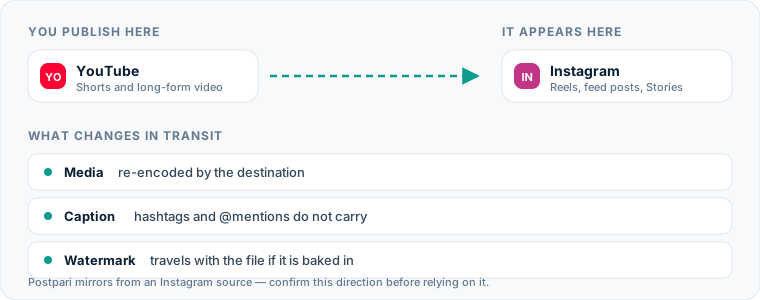
Getting a video from YouTube Shorts to Instagram takes either a second upload by hand or a tool that watches your channel and publishes each new Short as a Reel. There is no native bridge between the two: YouTube and Instagram belong to rival companies, so the automated route always runs through a third-party tool that reads your channel, fetches the video, and publishes it to a professional Instagram account.
One idea shapes everything below. The copy of your video that sits on YouTube is not the copy you want on Instagram. Your original export is. The best version of this route treats YouTube as the trigger and your own file as the cargo wherever the tool allows it.
One source account, one destination. Add the rest of your networks to the same flow.
Quick answer: three ways to get YouTube Shorts to Instagram
You have three realistic options, and they suit different publishing rhythms.
| Method | What you do for each video | What reaches Instagram | Fits you when |
|---|---|---|---|
| Upload the same file twice | Two uploads, two captions, two apps | Your original export | You publish a few Shorts a month |
| Compose once in a scheduler | One upload, one compose screen, both networks ticked | Your original export | You plan ahead and want to choose the time |
| Source-triggered automation | Publish the Short. Nothing else. | Whatever the tool retrieves from your channel | You publish often and YouTube really is home |
If you post a handful of Shorts a month, the first row is fine, and anyone who tells you otherwise is selling something. The second row is what a scheduler built for short vertical video does. The third row is the one people mean when they search for a way to automatically post YouTube Shorts to Instagram, and it is the one with the most fine print.
The manual method: exactly what you do today
Done properly, the manual route looks like this:
- Export the finished vertical video from your editor and keep the file.
- Upload it to YouTube, write a title and a description, and publish it as a Short.
- Move the same file to the device you post to Instagram from.
- Open Instagram, start a new Reel, and select the file.
- Pick a cover frame and check how it crops on your profile grid.
- Write a caption. Not the YouTube title pasted in: a caption.
- Share it, then open the Reel to make sure the audio and the cover survived.
The shortcut most people take at step 3 is to skip the original and download the Short back from YouTube instead. That is where this route goes wrong. YouTube Studio hands you its own re-encoded copy, not your master, and YouTube announced in 2022 that Shorts downloaded from Studio carry a YouTube watermark. A Reel with another network’s logo in the corner reads as a leftover, and viewers treat it like one.
So if you stay manual, the rule is simple: upload the file from your editor to both places, and never use YouTube as your file storage.
Where the manual method costs you more than you think
Seven steps is not much. The cost is in what happens around them.
- The second upload gets skipped. It always can wait until tonight, so it waits. A month later your channel has twelve Shorts and your Instagram profile has five Reels.
- The caption gets pasted, not written. By the second upload you are tired of the video, so the YouTube title goes in unchanged, with its hashtag and its “subscribe” still attached.
- The wrong file goes up. The original is on the laptop and you are on your phone, so you grab the watermarked download because it is closer.
- The timing drifts. A Short tied to something current is worth less on Instagram three days later.
None of these is a skill problem. They are what happens when a boring task depends on willpower. That is the whole argument for automation, and it is the same one behind cross-posting as a habit rather than a chore: do the thinking once, when you set the rule, instead of every time you publish.
The automated method for sending YouTube Shorts to Instagram
Two kinds of tool handle this, and they solve different problems.
A scheduler asks you to upload the file to the tool. You write the text, tick YouTube and Instagram, and choose a time. Both networks receive your original export, which is the cleanest possible result. The trade is that you now publish from the tool, not from YouTube Studio, and anything you rely on inside Studio has to be supported by the tool or done afterward. Our guide to scheduling and publishing Shorts covers what that changes on the YouTube side.
A source-triggered tool works the other way around. You keep publishing in YouTube exactly as you do now. The tool watches the channel, notices a new Short, and creates the Reel for you. Nothing about your routine changes, which is the appeal. The catch is the file: the tool can only send what it is able to retrieve from YouTube, so ask any vendor directly whether the Reel is built from a re-encoded copy and whether it arrives clean.
An honest note about which tool fits this direction
This site is run by the team behind Postpari, so here is the part a sales page would leave out. Postpari is a source-triggered mirroring tool, and its Terms of Use describe mirroring from an Instagram source. That is the reverse of this route. If YouTube is where you publish first, do not assume Postpari covers it; ask before you rely on it.
Repurpose.io is the better-known fit for a YouTube-first workflow. It is built around source-triggered workflows, lists YouTube among its networks, and advertises automatic resizing and watermark removal, which matter more on this route than on most. It is also the priciest of the creator-focused tools at entry, so confirm on its own site that Shorts can be the trigger on the plan you are considering. Our comparison of cross-posting tools and what each one automates sets these options next to each other with verified pricing.
There is a third option that costs nothing: change which account goes first. If you film one vertical video and have no strong reason to publish on YouTube before Instagram, publishing the Reel first and mirroring Instagram out to YouTube Shorts puts you on the direction most mirroring tools are designed around.
Setting up the flow
The clicks differ by tool. The order does not.
- Make the Instagram account professional. Meta’s publishing API works with Business and Creator accounts, not personal ones. Meta’s own content publishing documentation is the source of record for what a third-party tool may post. Some tools also ask you to link a Facebook Page; follow whatever the tool’s connection screen requests.
- Connect the YouTube channel. Sign in with the Google account that owns or manages the channel. If you manage several channels, check that the tool picked the right one. This is the most common setup mistake on the route.
- Restrict the flow to Shorts. A channel that also publishes long videos needs a filter, or a forty-minute horizontal upload will be offered to Instagram as a Reel.
- Set the caption rule. Choose which YouTube field becomes the caption and what gets removed. The section on captions below explains the choice.
- Decide between publish and review. If the tool offers a draft or approval step, use it for the first week.
- Publish one Short and inspect the result. Look at the Reel on your profile, not in the tool’s dashboard. Check the cover, the sound and the first line of the caption.
What happens to the video file
The shape survives. Shorts and Reels are both built for a vertical 9:16 frame, so a Short that fills the screen on YouTube fills it on Instagram. A square Short is the exception: YouTube accepts square video as a Short, and on Instagram it will sit in a vertical frame with empty space above and below unless the tool resizes it.
The quality depends on the copy. Every platform re-encodes what you upload. Send your original and Instagram compresses it once. Send a copy retrieved from YouTube and it has been compressed twice, which shows up first in fine textures, gradients and small on-screen text.
Length needs a look. YouTube now allows Shorts of up to three minutes, as its own Help page on creating Shorts sets out. Instagram’s limits for Reels have moved over time, and the ceiling a third-party tool can publish is not always the same as the one in the app. If you make longer Shorts, test your longest one before trusting the flow.
Music can vanish. A track added from the audio library inside the YouTube app is cleared for YouTube. When the video leaves, the license stays behind, and the copy may arrive silent or get muted. Add music and voiceover in your editor so the sound is part of the file.
The cover is usually a guess. A custom frame chosen on YouTube does not travel. Most tools take an early frame of the video, so make sure the opening second is not black, blurred or mid-transition.
What happens to the caption, hashtags and mentions
YouTube gives a Short two text fields: a title of up to 100 characters and a longer description. Instagram gives a Reel one caption. Every tool has to decide how to fold two fields into one, and the default is not always the one you would pick.
| Element | On YouTube Shorts | On Instagram | What to do |
|---|---|---|---|
| Title | A short headline, often written for search | No title field | Use it as the first line of the caption |
| Description | Links, credits, sometimes chapters | Becomes caption text if mapped | Map it only if you write descriptions with Instagram in mind |
| Links | Common in descriptions | Plain text, not clickable | Remove them and point to the link on your profile |
| The Shorts hashtag | Routine | Meaningless | Strip it automatically |
| Channel handles | Point to a YouTube channel | May point to a stranger, or nobody | Rewrite by hand when a mention matters |
| Call to action | “Subscribe” | “Follow” | Keep the spoken line neutral so one recording works on both |
The practical rule: write the Short’s title so it works as an opening line anywhere, and keep the description short. A tidy title maps cleanly. A description stuffed with links and credits turns into a messy caption no matter what tool you use. Our guide to captions and formats across networks goes through the same exercise for the other platforms.
Instagram-specific considerations
The grid crops your cover. A Reel appears on your profile grid in a tighter crop than the full vertical frame. If your cover has a title near the top or bottom edge, it will be cut off. Keep anything that must be readable in the middle of the frame.
Composer features may be missing. A collaborator invite, a location, a product tag and a track from Instagram’s own music library are all things you add in the Instagram app. A third-party tool may support some of them or none. If a Reel needs one, publish that Reel by hand and let the flow handle the rest.
Meta has its own onward sharing. Instagram can pass a Reel along to a linked Facebook account through Meta’s settings. If your tool also publishes to Facebook, you can end up with the same video there twice. Pick one path. The Instagram publishing and scheduling guide covers how the account types and connections fit together.
The audience is not the same audience. A Short is often found through search and suggestions by people who have never heard of you. A Reel reaches your followers first. An opening that explains who you are makes sense on YouTube and feels slow on Instagram, so a hook that works without an introduction serves both.
Common mistakes on this route
- Using YouTube as the file source when you still have the original. If you can send the export, send the export.
- Letting the flow see long-form uploads. Set the Shorts filter before the first run, not after the first accident.
- Leaving “link in the description” in the voiceover. Instagram has no description. Say “link on my profile” and the line works everywhere.
- Trusting the dashboard instead of the profile. A tool can report success for a Reel that published with a black cover. Look at the result for the first few posts.
- Ignoring a disconnected account. Authorizations expire and passwords change. If the Reels stop, reconnect the Instagram account before you debug anything else.
- Automating a video that needed a human. A sponsored Short with disclosure requirements, or one built around a YouTube-only feature, should be posted to Instagram by hand.
What the platforms themselves document
Publishing rules change without notice, and every network is the only authority on its own. These are the pages we check this guide against. If one of them contradicts this page, it is right — tell us.
- YouTube Help: create a Short — YouTube
- Instagram Platform: content publishing — Instagram
Does Postpari do this? Worth knowing before you sign up: Postpari's Terms of Use describe mirroring from an Instagram source. If YouTube is where you publish first, check with Postpari that your direction is supported before you rely on it.
Frequently asked questions
Can I automatically cross-post YouTube Shorts to a personal Instagram account?
No. Third-party publishing on Instagram works with professional accounts, meaning a Business or Creator profile. Switching is free and reversible, and a personal account can still receive the video by hand through the Instagram app.
Is it a problem to post the same video on YouTube Shorts and Instagram Reels?
Neither platform publishes a rule against posting your own video in both places. What does hurt a Reel is a visible watermark from another app, a frame that is not vertical, or a caption that still talks about subscribing to a channel.
What happens to links in my YouTube description when the Short goes to Instagram?
Instagram captions do not turn web addresses into clickable links. A URL copied over from a YouTube description shows up as plain text, so it is better to remove it and point people to the link on your profile.
Do I need to remove the Shorts hashtag before posting to Instagram?
It will not break the post, but it does nothing on Instagram and tells every viewer the Reel was made for somewhere else. Swap it for one or two hashtags that describe the subject of the video.
Why did my Short lose its music when I moved it to Instagram?
A track added from the audio library inside the YouTube app is licensed for use on YouTube. Once the video leaves, that license does not travel with it, and the copy can arrive silent or be muted. Add the audio in your editor instead.