How to Cross-Post from Instagram to LinkedIn Automatically
Prices and features last checked: August 2026
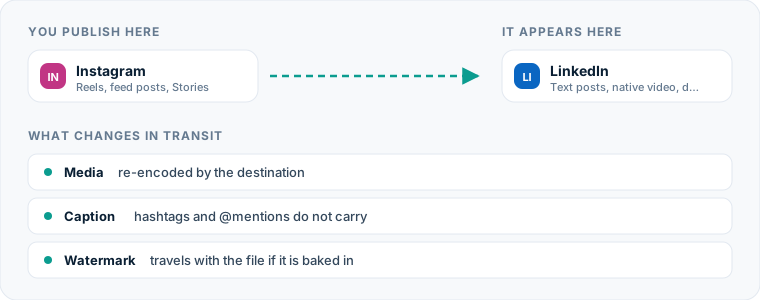
Moving short-form video content from Instagram to LinkedIn is one of the most effective ways to build a professional presence without creating every video from scratch. To automatically post Instagram videos to LinkedIn, you connect your Instagram account as a source inside an automation platform, select your LinkedIn profile or page as the destination, and let the tool publish your short videos whenever a new post goes live.
When you publish a short video—such as an Instagram Reel—the primary hurdle is getting the video file and caption formatted properly for LinkedIn’s professional feed. Doing this manually requires exporting files, transferring data across devices, retyping copy, and fixing broken links. Automation software eliminates these repetitive tasks by monitoring your public feed, downloading the original video asset, and re-uploading it directly to your LinkedIn account.
If you want to understand the broader strategy behind syncing your accounts, our guide to social media cross-posting covers how multi-platform publishing fits into a content engine.
One source account, one destination. Add the rest of your networks to the same flow.
How to set up an automated Instagram to LinkedIn pipeline
An automated distribution pipeline watches your Instagram profile for fresh uploads. When it detects a new short video, it extracts the file, formats the caption, and transfers the payload directly to LinkedIn through official application programming interfaces (APIs).
Source-to-destination mirroring
Unlike legacy schedulers that require you to upload assets into a central dashboard days in advance, modern source-to-destination tools treat one account as the master publisher. When you publish a video natively on Instagram using your phone, the automated pipeline triggers instantly. It captures the published Reel and sends it to your connected LinkedIn profile or company page without manual intervention.
Automatic backfilling of older posts
A key advantage of dedicated automation platforms like Postpari is the ability to handle historical content. If you already have a deep archive of Instagram Reels that never made it to LinkedIn, you do not have to upload them one by one. Backfilling features allow you to drip your existing catalog out to LinkedIn on a steady, controlled schedule alongside your new posts.
The manual workflow: copying content by hand
Before looking at automation, it helps to analyze what happens when you cross post Instagram to linkedin manually. While direct publishing works for an occasional post, the manual sequence requires multiple friction points across devices and applications.
Here is the exact step-by-step process required to move a Reel to LinkedIn manually:
- Locate the raw file: Find the original video on your phone or local hard drive. If you shot and edited the video directly within the Instagram app, you must save it to your camera roll before publishing, or download it afterward using a third-party tool.
- Transfer the file: Move the video asset from your mobile phone to your desktop computer if you prefer writing longer captions on a physical keyboard, or open the LinkedIn mobile app.
- Copy the text: Open Instagram, tap edit or select your post draft, copy the caption text, and paste it into a notes app or message to transfer it to your drafting environment.
- Clean up the formatting: Remove Instagram-specific elements such as ”@” handles that do not map to LinkedIn users, delete excessive hashtag blocks, and insert professional line breaks.
- Upload to LinkedIn: Open LinkedIn, create a new post, select the video file, paste the revised caption, select your target audience (profile or company page), and click publish.
If you post several times a week, performing these five steps for every single video rapidly consumes working hours that belong elsewhere.
Why publishing manually from Instagram to LinkedIn costs more than you think
Manual cross-posting carries hidden operational costs. The issue is not just the five minutes spent copying a caption; it is the constant context switching and administrative burden that accumulates over months of content creation.
Task switching and workflow fragmentation
Interrupting your work to re-upload files breaks concentration. When you finish editing a Reel, your focus should shift to your core business operations or your next creative piece. Instead, manual publishing forces you to log into separate platforms, adjust settings, manage mobile file storage, and double-check upload statuses.
File degradation and watermark issues
When creators attempt to save videos directly from Instagram after publishing, the saved file often includes a hardcoded watermark or undergoes additional video compression. Video platforms display lower user engagement on clips bearing competitor watermarks or visible compression artifacts. Retrieving raw files manually or re-exporting from editing software adds file management overhead to every project.
Inconsistent publishing schedules
When manual effort is required, consistency suffers. Busy days lead to skipped posts on secondary networks. Over time, your LinkedIn account becomes an abandoned channel with sporadic updates, missing out on organic discovery from business contacts who do not follow your Instagram account.
Here is how manual management compares to using automated tools:
| Feature / Task | Manual Cross-Posting | Dedicated Scheduling Tools | Automated Mirroring (Postpari) |
|---|---|---|---|
| Primary Trigger | Manual upload per post | Scheduled queue date | Native Instagram publish |
| Setup Time | None (repetitive every post) | High (upload per channel) | Low (one-time flow setup) |
| File Handling | Manual export/transfer | Direct dashboard upload | Automatic asset retrieval |
| Historical Posts | Manual re-upload | Manual re-queue | Automatic backfill dripping |
| Multi-Account Scaling | Tedious (log in/out) | Account bundles | Source-to-destination flows |
Understanding automated video mirroring
Automated video mirroring represents a shift from traditional scheduling workflows. Instead of treating every network as an individual destination that needs a unique calendar slot, you establish a primary source network and let technology handle downstream syndication.
If you rely on visual planning calendars, using a dedicated Instagram scheduler lets you draft posts for your main visual feed. However, once that post goes live, auto-mirroring takes over to automatically post Instagram to LinkedIn without requiring you to open a second app.
For creators looking to evaluate the marketplace, comparing the best cross-posting tools reveals a split between traditional multi-account dashboards (like Buffer, SocialPilot, or Hootsuite) and automated trigger-based pipeline tools (like Postpari or Repurpose.io).
Traditional management tools require you to select accounts and upload assets into a dashboard calendar. Trigger-based automation platforms run silently in the background: you publish on your phone via Instagram, and the server fetches the clean video file and posts it to LinkedIn automatically.
Step-by-step: connecting your Instagram and LinkedIn accounts
Setting up an automated flow between Instagram and LinkedIn takes only a few minutes. Here is the operational process for configuring an automated distribution pipeline.
Step 1: Connect your Instagram account as the source
Inside your automation platform, select Instagram as your primary source network. The platform connects via official authorization protocols. For continuous, reliable mirroring without manual login refreshes, your Instagram account must be set up as a Creator or Business account connected to a Facebook Page.
Step 2: Connect your LinkedIn account as the destination
Next, add your LinkedIn credentials. You can select either a personal LinkedIn Profile or a LinkedIn Company Page as your destination target. While a dedicated LinkedIn scheduler is useful when crafting bespoke corporate text posts, auto-mirroring routes short videos straight to your selected destination feed as soon as they publish on Instagram.
Step 3: Draw the automation flow
Create a new pipeline or flow connecting your Instagram source to your LinkedIn destination. In Postpari, this is as simple as selecting your connected Instagram account on the left side of the dashboard and drawing a delivery path to your LinkedIn account on the right.
Step 4: Configure post filtering and options
Choose whether you want all public Instagram Reels to transfer automatically or if you prefer filtering posts using specific hashtags in your caption. You can also configure backfill settings to begin slowly transferring past video posts into your LinkedIn feed over time.
What happens to your video file during transmission
When an automated system repost Instagram to LinkedIn, the video file undergoes a clean background transfer. Understanding this technical process ensures your media maintains high visual fidelity on the target platform.
Resolution and aspect ratio alignment
Instagram Reels are typically published in a 9:16 vertical aspect ratio (1080x1920 pixels). LinkedIn supports vertical video natively in its mobile app feed. When the automation system processes your video, it extracts the original vertical asset without adding black bars or stretching the frame, maintaining the native mobile viewing experience for LinkedIn users.
Video compression and audio sync
Direct browser-based downloads or screen recordings degrade video resolution and desynchronize audio. Automation engines pull high-bitrate source files via platform APIs, preserving clean audio tracks, sharp visual details, and smooth frame rates.
Watermark elimination
If you edit videos using third-party apps, uploading raw assets directly to Instagram ensures clean source files. The automation system transfers these pristine video assets to LinkedIn, guaranteeing that your professional network sees clean, unbranded video content free of third-party overlays.
How captions, hashtags, and mentions translate across platforms
A major challenge when learning how to post Instagram to LinkedIn automatically is managing text differences between visual-first and professional social networks.
Handling line breaks and text limits
Instagram captions favor casual, compact text blocks or long-form storytelling with custom line breaks. LinkedIn supports rich text spacing and high character limits per post. Automation engines preserve your original paragraph spacing, ensuring your text remains easy to read on desktop monitors and mobile devices alike.
Translating tags and mentions
User handles do not translate directly across platforms. An Instagram handle like @janedoe_designs will not tag Jane Doe on LinkedIn because account IDs differ between networks. Automated systems parse caption text as plain body copy. While the text string @janedoe_designs transfers as readable characters, it will not create an active hyperlink on LinkedIn. If tagging specific accounts is critical for a high-value partnership post, you can edit the post text on LinkedIn after automated delivery.
Hashtag adaptation
Hashtag usage varies significantly between platforms:
- Instagram: Users frequently append 5 to 15 hashtags to boost algorithmic discovery.
- LinkedIn: Posts perform best with 3 to 5 targeted, industry-specific hashtags.
When setting up your instagram linkedin automation flow, keep your primary Instagram caption focused on core keywords. Highly specific hashtags work well across both platforms, whereas broad viral tags look out of place in a corporate feed.
LinkedIn-specific content considerations
LinkedIn operates on business networking principles. While vertical video performs exceptionally well on the platform, your content framing must respect the professional context.
Adapting visual tone for a professional network
Content that succeeds on Instagram—such as behind-the-scenes footage, educational tutorials, industry commentary, and founder insights—translates effectively to LinkedIn. However, purely personal updates or meme trends without a business or career context can underperform. Focus your automated pipeline on educational, operational, or industry-focused video assets.
Encouraging professional conversation
LinkedIn comments favor professional discourse and career experiences. Structure your Instagram video captions to end with a clear, open-ended business question. For example, replacing “Double tap if you agree!” with “How does your team handle this operational bottleneck?” creates an immediate prompt for LinkedIn users to engage in the comments.
Common mistakes when you post Instagram content to LinkedIn
To get the best results from your distribution pipeline, avoid these frequent operational errors.
1. Over-indexing on casual slang and Instagram references
Using phrases like “Link in bio” or “Tap the sticker” makes no sense on LinkedIn, where posts do not feature bio-link limitations or interactive story stickers. Write your Instagram captions so the call-to-action makes sense on any platform, using language like “Visit our website” or “Check the link below.”
2. Relying on personal profiles for company branding
If you run a corporate brand, ensure your automated flow routes content to your LinkedIn Company Page rather than an employee’s personal profile. Postpari allows you to route source content directly to company pages, keeping corporate media separate from personal networking profiles.
3. Ignoring video length constraints
While Instagram allows long-form video posts, short vertical clips under 60 seconds achieve higher completion rates across business networks. Keep your Instagram Reels concise to maximize viewer retention when automatically mirrored to LinkedIn feeds.
4. Over-saturating the LinkedIn feed
Publishing ten short clips a day might work on consumer-facing visual networks, but it can overwhelm a professional network. If you publish high volumes of media on Instagram daily, use filtering rules inside your automation platform or adjust your backfill pacing to maintain a balanced, professional posting cadence on LinkedIn.
What the platforms themselves document
Publishing rules change without notice, and every network is the only authority on its own. These are the pages we check this guide against. If one of them contradicts this page, it is right — tell us.
- Instagram Platform: content publishing — Instagram
- LinkedIn Help: sharing video — LinkedIn
Does Postpari do this? Postpari is built around exactly this shape of flow: Instagram as the source, LinkedIn as a connected destination.
Frequently asked questions
Can I automatically post Instagram Reels to a LinkedIn Company Page?
Yes, automation tools like Postpari allow you to route videos from your Instagram source account directly to either a personal LinkedIn profile or an authorized LinkedIn Company Page. You select the target destination during initial pipeline setup.
Will my Instagram hashtags work automatically on LinkedIn?
The text of your hashtags will transfer directly to your LinkedIn post caption. However, while Instagram posts often use many broad tags, LinkedIn content performs best with a few targeted, industry-specific hashtags included in the body copy.
Do cross-posted Instagram videos retain high video quality on LinkedIn?
Yes, automated mirroring platforms pull the original high-resolution video file via official platform APIs rather than capturing lower-quality screen downloads. This preserves vertical aspect ratios, clear audio, and crisp visual resolution across networks.
Can I cross-post past Instagram videos to LinkedIn without uploading them manually?
Yes, platforms with backfilling capabilities allow you to select your historical catalog of Instagram Reels and drip them out to your connected LinkedIn account over time on an automated distribution schedule.
Will user handles tagged in my Instagram caption tag the same person on LinkedIn?
No, user account handles differ between platforms, so an Instagram handle will not automatically link to a user's LinkedIn profile. The handle text will appear as plain characters in your LinkedIn caption unless manually updated.